• Filed to: Create PDF
Convert Word To Pdf Mac Free Online
Using PDF format can ensure that the formatting and layout are maintained on any devices. It is more secured than other formats, and tends to have a fairly small size. There may be times when you need to convert multiple Word documents to PDF. This article will describe 5 simple ways to batch convert Word to PDF.
Method 1. Batch Convert Word to PDF with PDFelement Pro
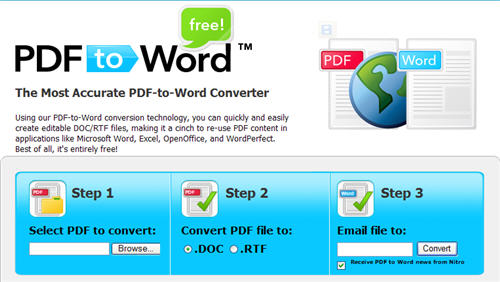
It is certainly the best PDF converter application ever. If you do not have word on your phone you can still convert Microsoft Word files into a PDF format with the PDF Creator for Mac. PDF Creator enables you to convert your Word files accurately to PDF fast and easy. Steps to Transfer Word to PDF on Mac with Hyperlinks and Original Layout Step 1. Convert PDF to Word for free with our PDF converter. The powerful web conversion engine ensures that the document formatting is preserved when converting from PDF to Word. When using an online PDF converter, fonts, images, and document formatting are displayed as the author originally intended on Windows and Mac. Follow these easy steps to create PDF files from other documents using the Acrobat online PDF converter tool: Click the Select a file button above, or drag and drop a file into the drop zone. Select the document you want to convert to PDF. Watch Adobe Acrobat do its convert PDF magic.
We highly recommend that you use PDFelement Pro to export Word documents to PDF,if you are a Windows user. The steps to convert Word to PDF in batch form is very simple. Follow the guide below:
Step 1. Download and Launch PDFelement Pro
The first step on how to batch convert Word to PDF is to download PDFelement Pro. When installed this batch PDF converter, open it and click 'Create PDF' to begin the Word to PDF bacth converting.
Step 2. Batch Convert Word to PDF
When you click 'Create PDF', select All the Word documents you need to convert and click 'Open'. It will automaticly begin the process of batch converting Word to PDF.
Step 3. Save the Files
Click on the 'File' at the top left part of the toolbar and choose the 'Save' option. Click 'Save' again on the pop up windows. Now your word files have been converted into PDFs.
Optional: Combine Multiple Word Files into Single PDF
Click 'Home' > 'Combine Files' > 'Add Files' > Click 'Next' to combine multiple Word Files into Single PDF.
Method 2. Batch Convert Word to PDF with PDF Creator for Mac
If you are using a Mac, iSkysoft PDF Creator is a great batch converter for Word to PDF conversions and is an affordable solution for creating and editing PDFs without hassle. You can also use iSkysoft PDF Creator as a Word to PDF converter.
Key Features of iSkysoft PDF Creator:
- Converts Word files to PDF, and can batch convert many documents at once.
- Plus, it creates PDFs that are compatible with any PDF program and all MS Office suites.
- Almost all versions of MS Office are compatible, such as 2003, 2007, 2010 and 2013.
- It's simple to use, easy to install and lets you convert many Word documents at once.
- Creates very high quality PDF documents that retain original formatting.
Step 1. Launch iSkysoft PDF Creator for Mac
Download and launch iSkysoft PDF Creator for Mac.
Step 2. Import Word Files
Select the 'Add Files' button to add your Word files. If all your files are saved in one folder then you can choose the 'Add Folder' option. The second method of importing your word files is by dragging and dropping them directly into the program.
Step 3. Start Batch Converting Word to PDF
Click the 'Create' button to start the conversion process from Word to PDF. Upon completion, open the final PDF documents and save them in the desired location on your Mac.
Method 3. Batch Convert Word to PDF with Web Tool
- Step 1: Visit the site at hipdf.com. On the homepage, you will see the 'Convert' button on the top toolbar.
- Step 2: Click the 'Word to PDF' button and choose as many Word documents from your computer as you want.
- Step 3: Click the 'CHOOSE FILE' button and wait for the conversion process to end. Once complete, the PDF files will download automatically. And you can subscribe to begin batch convert Word to PDF.
Method 4. Batch Convert Word to PDF with Adobe Acrobat
- Step 1: Save all the Word documents that you wish to convert in one folder.
- Step 2: Open Adobe Acrobat and select 'Create PDF' to begin the batch convert Word to PDF progress.
- Step 3: Choose 'Multiple Files' > 'Create Multiple PDF Files'. Then click 'Next'.
- Step 4: Add Word files using the browse button and click on 'OK'. Choose the output folder and click on 'OK' to start the batch Word to PDF conversion.
Most official and financial reports are saved in PDF format, due to its diversified formatting and high security. But what if you need to analyze or extract data from a PDF contract, from a PDF bank statement or others on mac?

Reasons to convert a PDF file to Excel on mac can be different, and it is lucky that we have multiple solutions to perform such a conversion. Here, we are going to list 7 ways to convert PDF to Excel on Mac, including both online and offline free options.
Convert PDF to Excel on Mac without Losing Formatting
It is true that a part of users prefer to online PDF to Excel converters in the beginning, but finally, most of them will pick a professional Mac PDF to Excel Converter to perform the conversion, since a dedicated PDF to Excel converter can bring high conversion quality and the formatting can be highly maintained. In this case, Cisdem PDF Converter OCR is a good choice basing on its interface, simplicity to use, conversion quality, speed, safety and additional features.
Cisdem PDF Converter OCR is a PDF OCR Software for mac, which can convert both normal and scanned PDF documents, even images, into editable and well-formatted Excel, Word, Text, PowerPoint, Excel, Rtfd, ePub, HTML, keynote, pages, etc.
Why Cisdem PDF to Excel Converter?
- High conversion quality, no data loss, no formatting mess
- Multiple input formats: convert native, scanned, encrypted PDFs
- Versatile output formats: Excel and other 15 formats
- Batch conversion
- OCR ability to turn images into Excel or other editable formats
- Partial conversion
- Extended Features: Create, Protect/Unprotect PDF, Compress PDF
How to Convert PDF to Excel on Mac without Losing Formatting
- Download and install PDF Converter OCR to your Mac.
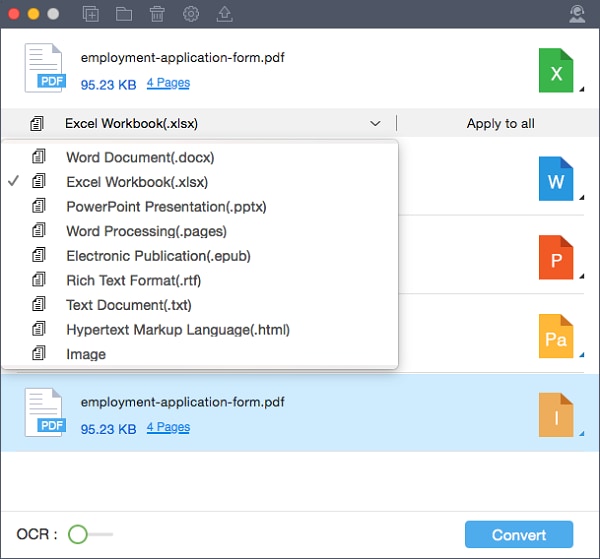
Free Download - Import PDF bank statement or other files to the program on Mac.
- Turn OCR button ON.
This is a must-do for PDF to Excel conversion in Cisdem, otherwise, the Excel output won't be activated in the output format menu. - Choose page range, select file language and choose output format as Excel.
- Convert PDF to Excel on Mac without losing formatting.
Click 'Convert' to start the PDF to Excel conversion process. The status bar will indicate a successful conversion within seconds.
Tips: Convert PDF to Excel with OCR on Mac using Cisdem
To convert scanned PDF to Excel OCR on Mac with Cisdem, the steps are the same as above, but you can utilize its advanced OCR to output specific PDF parts to Excel.
- Add scanned PDF files to the program.
- After uploading, click Setting icon.
- Check if all OCR applied zones are marked properly, if not, manually adjust.
You will find the whole PDF is divided into different OCR applied zones in different colorful boxes. First, check if all the OCR applied zones are marked correctly, if not, you need manually adjust. For example, if you want to output a part as Excel table, remove the original mark box, click on 'Mark Tables' in the OCR applied zone, then drag a mark box to select those contents you want to export as Excel table. Finally, go back to PDF Converter interface. - Choose file language and select output as Excel.
- Click Convert PDF to Excel with OCR on Mac.
Also, you can check the video tutorial to convert PDF to Excel with Cisdem.
How to Convert PDF to Excel on Mac Free
There are 2 ways to convert PDF to Excel on Mac using macOS free utilities: Preview and Automator, both of them are designed to work on a PDF file.
#1 Convert PDF to Excel on Mac in Preview

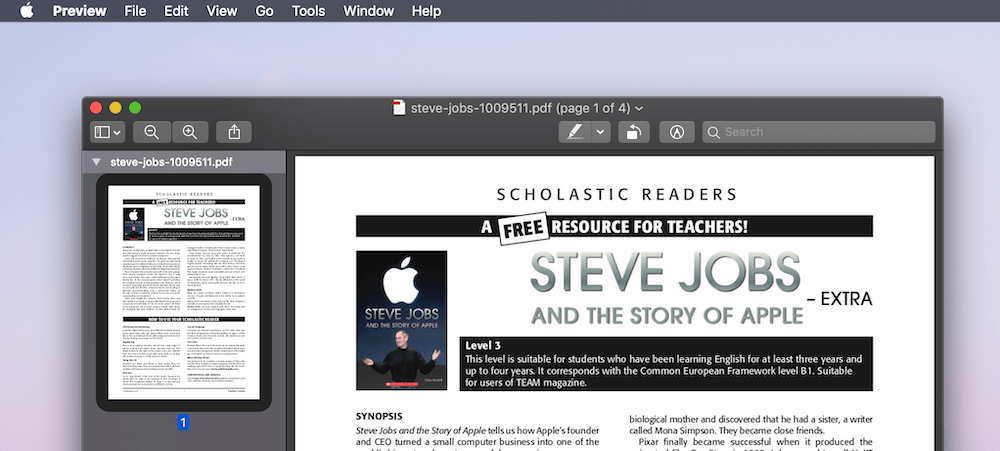
Preview can view, edit, annotate, highlight, print and manage PDF pages, also enable to export PDF to image format, but doesn’t include Excel as the output format. In this case, you will have to copy and paste contents from PDF to a Excel file.
- Open PDF with Preview.
- Select the PDF data and right click to choose “Copy”.
- Then open a blank Excel spreadsheet, paste the PDF data to the file and save it.
#2 Convert PDF to Excel on Mac in Automator
Automator is designed to create workflows for automating multiple tasks, it is capable of managing workflows from different applications and documents, including PDF. You can utilize Automator to compress, extract text or combine PDF. However, you cannot convert PDF to Excel directly with Automator, only to extract data from PDF to Excel.
- Go to Finder>Application, run Automator, select “Workflow”> “Choose”.
- In the left colume, choose “Files & Folders”, then drag “Ask for Finder Items” to the right column.
- In the left column, choose “PDFs”, then choose “Extract PDF Text” to the right column.
- Press Command+S, and choose the file format as “Application”.
- Open the Automator file saved onto your Mac, then click “Run” to save the PDF file as Text format.
- Open the Text file, copy and paste the extracted texts to Excel on mac.
Export PDF to Excel on Mac online, free without Software
Also, there are online, free PDF to Excel converters for your choice, we pick 2 of them that bring good conversion quality, but before visiting these tools, you should be aware of following:
- Make sure your Internet connection is in good condition, the whole conversion process requires a good Internet connection.
- Don't upload large size files for conversion, the process may take longer time, even pause for no reason.
- Don't upload complicate files for conversion, the conversion quality will be greatly sacrificed when your PDF files are filled with tables, images, etc.
- Recheck the converted files and manually adjust the format or layout if necessary.
- Don't upload private files for conversion, your files are stored in the online server for a while, which may cause information leakage.
#1 pdftoexcelconverter
The reason why put this online PDF to Excel converter here is mainly due to the good conversion quality, you will find all the data are well formatted in individual row and column.
Pdftoexcelconverter is exclusively designed to convert both native and scanned PDFs into Excel. You can upload PDF files from Mac, Google Drive, Dropbox, OneDrive. And it processes the conversion quite fast.
Steps to Convert PDF to Excel on Mac online, free with pdftoexcelconverter
- Go to https://www.pdftoexcelconverter.net/.
- Click “Upload” or directly drag ad drop files into the program.
- The conversion will start automatically, once ready, a Download button will be available, click on the “Download” button to get your Excel output.
#2 online2pdf
It ranks as my second best online, free choice due to its satisfying conversion quality. By saying “Satisfying”, I mean online2pdf does bring better results than other similar online pdf converters, but in terms of format and layout intactness, it still requires users to manually adjust after the conversion.
online2pdf.com allows you to upload multiple PDF files up to 100MB from your computer. After uploading, you can convert both native and scanned PDF files to Word, Excel, PowerPoint, RTF, TXT on Mac for free. Another impressive feature from online2pdf, lies in how it allows users to customize the Excel outputs.
Steps to Convert PDF to Excel on Mac online, free with online2pdf
- Go to online2pdf, upload PDFs files that you want to convert to Excel on mac.
- Choose output as Excel and select OCR if you have uploaded a scanned file.
- (Optional) In the Preferences box, manually adjust before converting PDF to Excel.
- Click “Convert” to turn PDF into Excel online.
Once the conversion finishes, the downloading for your Excel output will start automatically, just save to your preferred path on mac.
Convert PDF to Excel on Mac in Adobe Acrobat If You Have
Adobe Acrobat DC is a powerful tool to manage PDFs, you can view, create, export, sign, redact PDF, etc. With its feature of 'Export PDF', users will be allowed to convert PDF to Excel, Word, PowerPoint, Image even HTML.
Convert Jpg To Pdf Mac Free
How to convert PDF to Excel on Mac in Adobe Acrobat DC?
- Run Adobe Acrobat DC on your mac.
- Go to Tools>Export PDF.
- Choose Spreadsheet as output, you will be able to convert PDF to Excel on Mac with Adobe, no data or format is lost.
How to Convert PDF to Excel on Mac Using MS Excel?
If you don’t want to use any 3rd party tool or service for the conversion, you can utilize your Mac Microsoft Office Excel, it allows inserting PDF to Excel as URL or image.
#1 Insert PDF to Excel on Mac as URL Using Excel
- Upload the PDF into your cloud storage account, like Google Drive, Dropbox, etc., get the link.
- Copy the PDF file link.
- Paste the url to Excel document using Mac MS Excel.
- Save the Excel document.
#2 Insert PDF to Excel on Mac as Image Using Excel
- Run MS Excel on your Mac.
- Click on the cell where to insert the PDF, drag and drop PDF to Excel document, or you can click Insert and select the file to add.
- Choose the PDF page to insert, click Insert.
- Then go to File>Save.
Conclusion
Convert Jpg To Pdf Mac Free
In most cases, we seek free or low-cost solutions to perform document conversion, but only to find dedicated tools get the best results in the most efficient way. This is also true when we are trying to convert PDF to Excel on mac. According to above tests, free solutions do really help when you are not working on complicate PDF files. But if you want to retain original file quality and look for better user experience, you’d better try a professional PDF to Excel Converter like Cisdem PDF OCR Converter, it is worth a try.