A single keyboard and mouse or trackpad now work seamlessly between your Mac and iPad — they’ll even connect to more than one Mac or iPad. Move your cursor from your Mac to your iPad, type on your Mac and watch the words show up on your iPad, or even drag and drop content from one Mac to another. Download.com Staff Nov 26, 2013 App Store Preview for Mac provides a snapshot of the App Store right from your OS X Dashboard. An easy-to-use widget, it lets you sort and search for apps based on.
- Download Preview For Mac Os X 10 11 Download Free
- Download Preview For Mac Os X Update
- Download For Mac Os X 10.10
The Mojave update
Mac is a popular OS that keeps coming up with new updates to improve the user experience. Mojave is the newest update.
The latest benefits of the Mac OS
You will get some handy benefits free of charge. Besides the obvious advantages, there are covert improvements that will boost your Mac.
If you’re a user of Mac OS, upgrading to the Mojave version is the logical next step. The only thing you should worry about is to update your apps, as the old versions won’t work on Mojave.
The most significant changes in the newest version relate to aesthetics. With Mojave, you can mute the colors of the interface, so you don’t find yourself blinded when working at night thanks to the Dark Mode. Furthermore, the Dynamic Desktop feature changes the image on your desktop to match the time of the day.
As an operating system, Mac OS has always tried to make things sleek and minimalist on your desktop. However, in the older versions, the sync between Mac and iPhone led to a lot of clutter. To counter that, Apple added Desktop Stacks to make your desktop organized according to the criteria you desire.


These, and many more features allow Mac users to enjoy an even sleeker operating system. Another thing that draws attention is an improvement in Continuity - the connection between the phone and the computer. In general, the newest version of the operating system brings everything the users loved in the previous versions - only enhanced.
Is there a better alternative?
No. Unless you rely too heavily on old apps without new updates, Mojave is a logical extension of your current user experience.
Where can you run this program?
Mac Mojave runs on Mac computers featuring an OS X 10.8 and later versions.
Our take
This new update took the best features and improved them. There are no obvious drawbacks, Mojave does its job, and it does it properly.
Should you download it?

Yes. If you're a Mac lover, you'll probably want to get OS X Mojave.
Download Preview For Mac Os X 10 11 Download Free
Highs
- Dark Mode
- Document Stacks
- New screenshot functionalities
- Increased connection between phone and desktop
Lows
- Not all apps support this update
- Some iCloud issues
- Can seem a bit slow at times
Mac OS X 10.5.6for Mac
10.5.6
Preview User Guide
Although you can’t edit the text of a PDF in Preview, you can use the markup tools to provide feedback or write down something you want to remember. The editing tools in the Markup toolbar are ideal for collaborating—use them to suggest changes to a PDF and to respond to suggestions.
Download Preview For Mac Os X Update
In the Preview app on your Mac, click the Show Markup Toolbar button (if the Markup toolbar isn’t showing).
Use the tools in the toolbar to mark up the PDF (or use the Touch Bar).
Tool
Description
Text Selection
Select text to copy or delete. See Select and copy text in a PDF.
Rectangular Selection
Select a rectangular area in an image to copy or delete.
Redact Selection
Select text to permanently remove it from view. You can change the redaction as you edit, but once you close the document, the redaction becomes permanent. To safeguard the original document, create a duplicate to redact.
Sketch
Sketch a shape using a single stroke.
If your drawing is recognized as a standard shape, it’s replaced by that shape; to use your drawing instead, choose it from the palette that’s shown.
Draw
Draw a shape using a single stroke. Press your finger more firmly on the trackpad to draw with a heavier, darker line.
This tool appears only on computers with a Force Touch trackpad.
Shapes
Click a shape, then drag it where you want. To resize the shape, use the blue handles. If it has green handles, use them to alter the shape.
You can zoom and highlight shapes using these tools:
Loupe: Drag the loupe to the area you want to magnify. To increase or decrease the magnification, drag the green handle; drag the blue handle to change the loupe size.
Highlight : Drag the highlight where you want. To resize it, use the blue handles.
See Rotate and modify shapes added to a PDF.
Text
Type your text, then drag the text box where you want.
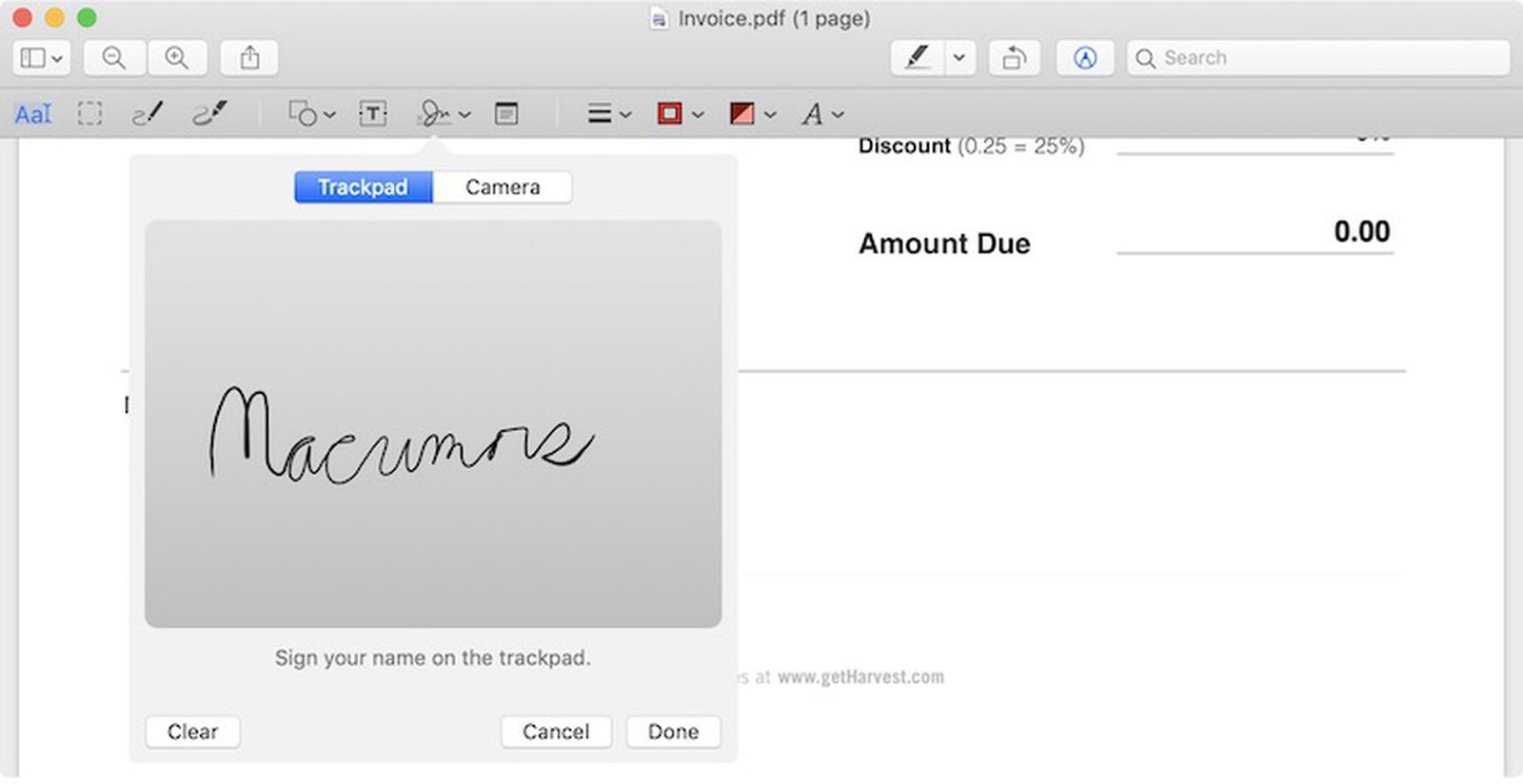
Sign
If signatures are listed, click one, then drag it where you want. To resize it, use the blue handles.
To create a new signature:
Using your trackpad: Click Trackpad, click the text as prompted, sign your name on the trackpad using your finger, press any key when you’re finished, then click Done. If you don’t like the results, click Clear, then try again.
If your trackpad supports it, press your finger more firmly on the trackpad to sign with a heavier, darker line.
Using your computer’s built-in camera: Click Camera. Hold your signature (on white paper) facing the camera so that your signature is level with the blue line in the window. When your signature appears in the window, click Done. If you don’t like the results, click Clear, then try again.
Using your iOS or iPadOS device: Click Select Device to choose a device (if more than one is available. On your device, use your finger or Apple Pencil to sign your name, then click Done. If you don’t like the results, click Clear, then try again.
Your devices must meet Continuity system requirements. See the Apple Support article System requirements for Continuity on Mac, iPhone, iPad, iPod touch, and Apple Watch.
See Fill out a PDF form.
Note
Type your text. To change the note color, Control-click the note, then choose a color. To move the note to a different location, drag it.
See Add notes and speech bubbles to a PDF.
Shape Style
Change the thickness and type of lines used in a shape, and add a shadow.
Border Color
Change the color of the lines used in a shape.
Fill Color
Change the color that’s used inside a shape.
Text Style
Change the font or the font style and color.
Annotate , ,
Annotate the item by sketching or drawing on it using your nearby iPhone or iPad . If both devices are nearby, click , then choose a device. The tool may appear highlighted to show your device is connected. To disconnect your device without using it, click the tool again.
Your devices must meet Continuity system requirements. See the Apple Support article System requirements for Continuity on Mac, iPhone, iPad, iPod touch, and Apple Watch.