Learning Tools are free tools from Microsoft that implement proven techniques to improve reading and writing for people regardless of their age or ability. These Learning Tools are available in various versions of Microsoft OneNote and Microsoft Word. Microsoft yesterday announced ten new improvements coming to Learning Tools including translation features, Math Assistant support, Line Focus in Word Desktop app and more. Read about them below.
- Immersive Reader Edge
- Immersive Reader And Microsoft Word For Mac Free
- Immersive Reader Mode
- Immersive Reader And Microsoft Word For Mac Download
1. Translate comes to the Immersive Reader
We’ve added the ability for anyone to translate a page, or single word into another language, in real-time all within Immersive Reader. This new capability will support Read Aloud, Syllables, Parts of Speech and Picture Dictionary. Translate in Immersive Reader will be available in: Word Online, OneNote Online, OneNote for Windows 10, OneNote iPad, OneNote Mac, Outlook Online, Teams and Flipgrid. Translate will begin rolling out worldwide this week and into next week and you’ll find the list of supported languages here.
Immersive reader is available to use for free on the following platforms: Word (Online, Desktop and Mac, iPad and iPhone app) Outlook (Online and Desktop) OneNote (Online, Universal App, Mac and iPad, free add-in in Desktop) Microsoft Teams. Microsoft Edge browser. Office Lens (iPhone and iPad). Microsoft’s Immersive Reader is a free tool that provides a full-screen reading experience. It is designed to improve the readability of text in Microsoft applications through the use of assistive technology accommodations for people with print disabilities such as dyslexia, dysgraphia, vision impairment, and more.
2. Immersive Reader reading the Math Assistant’s Step-by-Step solutions
In OneNote for Windows 10 and OneNote Online, we are now combining the power of step-by-step solving in Math Assistant and the reading aloud in Immersive Reader. Math pane now has an additional button that launches the Immersive Reader for math step-by-step solutions.
3. Immersive Reader math in Word Online
In addition to being able to read math equations from your page in OneNote for Windows 10 and OneNote Online, the Immersive Reader will now read math equations from your Word Online documents, both in view and edit modes.
4. The modern Immersive Reader interface comes to OneNote Desktop Learning Tools
With many students and schools still using the original OneNote 2016 Learning Tools addin, we wanted to allows the students to get many of the benefits of the updated capabilities of the immersive reader. With the most recent update of the Learning Tools Addin to version 1.9, IT Administrators can now push out the Immersive Reader app from the Microsoft tore that interacts with the Learning Tools addin.

5. Word Desktop Line Focus
A popular capability of the Immersive Reader is Line Focus, which allows a focus of 1, 3, or 5 lines of text. Line Focus is coming to Word Desktop, and can be accessed on the View tab, and then clicking Learning Tools –> Line Focus. This feature has begun to rollout to Office Insiders, and will slowly be rolling out worldwide to all Office 365 customers. Later in spring, Line Focus will also be coming to Mac and iOS Word.
6. Page Colors in Word Desktop
One of the most popular features of the Immersive Reader has been page theme colors, which allows the changing of the background color of the page. Many people have challenges reading with an all-white or all-black background, so we’ve expanded the choice of colors in Word Desktop. This will start rolling out to Office Insiders in January, and roll out more broadly after January. Page Colors will be coming to Mac and iOS Word later in spring. To try this out, go to the View tab and choose Learning Tools, and then Page Color.
7. Parts of Speech and Picture Dictionary support for Korean, and coming soon for Arabic and Hebrew
Korean support for parts of speech (nouns/verbs/adjectives/adverbs) and picture dictionary are starting to roll out today, and in early February, we will be rolling out Arabic and Hebrew support for parts of speech and picture dictionary. These new languages will be supported in Word Online, OneNote Online, Windows 10 app, iPad and Mac, Outlook Online, Teams and Flipgrid.

8. Dictation in OneNote Online – rolled out 100% worldwide
As previously announced in October, Dictation is now rolled out 100% worldwide for all OneNote Online customers. Just look for the Dictate button on the Home tab.
9. Dictation in Word Online
As announced in October, Dictation is rolling to Word Online for Office 365. This is currently about 50% rolled out worldwide and was delayed for some improvements, but now we’ve resumed rollout, and we aim to have this at full 100% worldwide by February.
10. Auto-language detection
Auto-language detection is helpful Immersive Reader feature that is also rolled out 100% worldwide. An example of how auto-language detection works is to copy text from a Spanish website and pasting into Word Online. Now go to the View tab and choose Immersive Reader. The text will be automatically detected as Spanish, and switch to the proper text-to-speech language, syllables, and parts of speech. Auto-language detection is supported in Word Online, OneNote Online, OneNote for Mac and iOS, Teams, and Flipgrid.
Source: Microsoft
The best practice is to use sans-serif fonts rather than serif or decorative fonts. Sans serif does not have decorative lines. The fonts would include Arial, Calibri, Century Gothic, Tahoma, and Verdana. The font size should be 12 pt—font for the body text. The font could be larger depending on the audience or page layout.
Immersive Reader Edge
The Microsoft Immersive Reader is a free tool that automatically breaks up words into syllables, making it easier for students to master pronunciation. This tool is designed to help comprehension, better fluency, better engagement, the ability to take ownership and make students more confident in their own learning.
1.) Select 'View' from the top ribbon.
2.) Select 'Immersive Reader.'
3.) Using the options above, you may change settings and have the text read aloud to you.
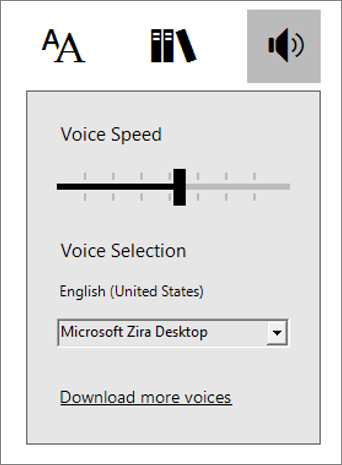
You can change the settings of the immersive read
Immersive Reader And Microsoft Word For Mac Free
You can change the voice and how fast the person talks.
Immersive Reader Mode
To View and Listen to a Video Tutorial:
Immersive Reader And Microsoft Word For Mac Download
Select the link below to watch and/or listen to the tutorial: