Hello everyone, welcome to another tutorial of the Oracle database. In this article, I am going to show you how to install Oracle instant client on macOS Catalina. Also, you will find out how to install the sqlplus tool on macOS Catalina. Instant Client is a client utility that needed to connect to the Oracle database server. Instant Client is available for Windows, macOS, and Linux systems. If you are Windows users, you can visit my article below to find out how to install Oracle instant client on Windows 10.
- Sqlplus Download Mac
- Sql Plus Windows 10
- Sql Plus Free Download
- Sql Plus Download Mac
- Sql Plus Download Mac Download
Steps to Install Oracle Instant Client on macOS Catalina
Step 1. Download the Software
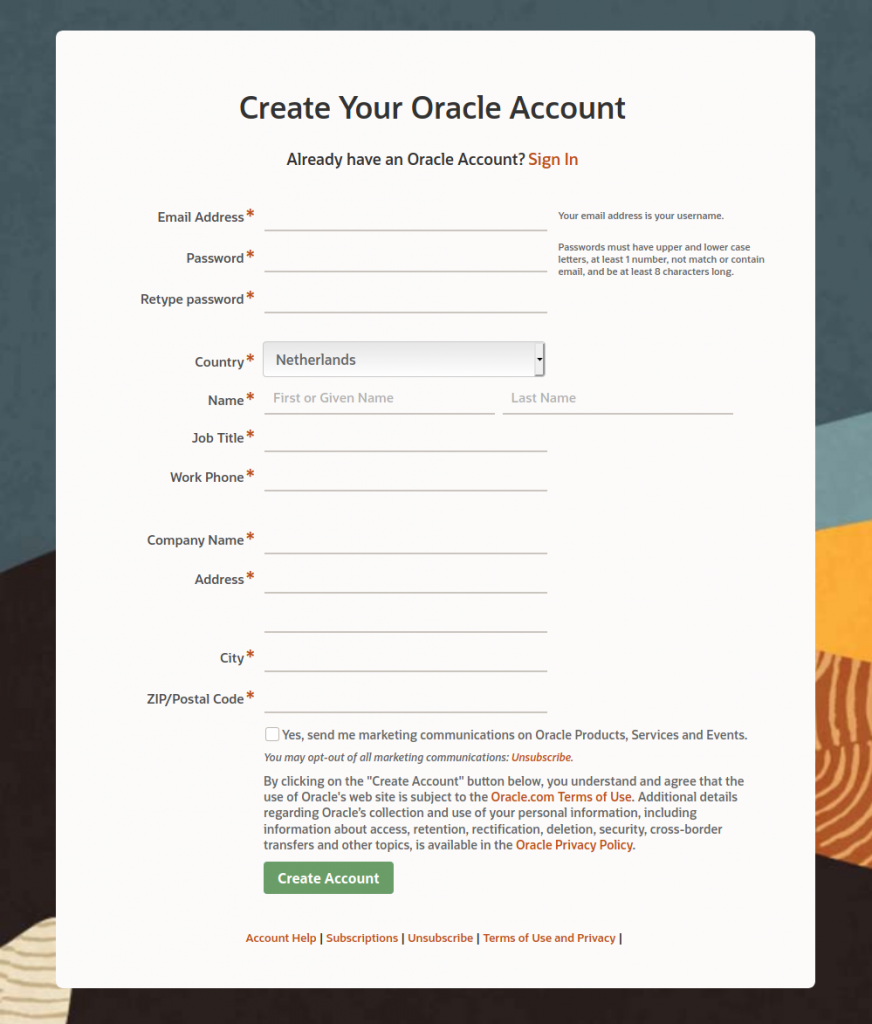
Jun 07, 2019 SQL.Plus Version 12.2.0.1.0. Navigate to Oracle downloads, accept the license agreement, and login. If you don’t already have an Oracle account, you’ll need to create one. Download these zip files: instantclient-basic-macos.x64-12.2.0.1.0-2.zip. Make dir for instant client then unzip zips. How do I download SQL Plus for Mac? Install SQL.Plus 12.2 on a Mac. Navigate to Oracle downloads, accept the license agreement, and login. Download these zip files: Make dir for instant client then unzip zips mkdir -p /bin/oracle unzip -d /bin/oracle instantclient-basic-macos.x64-12.2.0.1.0-2.zip unzip -d /bin/oracle instantclient-sqlplus.
Download the zip files containing the SQL.Plus Instant Client package, and the OCI package from the OTN Instant Client page at Both packages must be from the same version such as 11.1.0.6.
SQL Database Pro for Mac relates to Developer Tools. The most popular versions among the program users are 2.2, 2.1 and 1.2. This software for Mac OS X was originally designed by Impact Financials, Inc. This app is suitable for Mac OS X 10.8 or later. Our built-in antivirus checked this Mac download and rated it as virus free. From the developer. To install and run. Ensure you have a JDK installed, if not, download here. (For 64-bit Intel Macs, download Java for Mac OS X 10.5, Update 1. For the latest version of Mac OS, use the Software Update feature) Download the file for OS X on the Downloads page. Double-click the SQL Developer icon.
So we are going to install the instant client as well as the sqlplus utility on macOS Catalina. There are two packages we need to download. Please navigate to the official download page below for more information.
For this particular purpose, we will download the following:
Step 2. Create a New Directory for the Instant Client
It is recommended to create a new directory for the instant client software. In this case, I will create a new directory “/Applications/ora/client”. Use this command to create the directory.
Sqlplus Download Mac
Note: You can create the directory anywhere, for example, you can put it under your home directory.
Now extract the file instantclient-basic-macos.x64-19.3.0.0.0dbru.zip. It will produce a new folder called “instantclient_19_3“. Now move the instantclient_19-3 folder to /Applications/ora/client.
Next, extract the second zip file instantclient-sqlplus-macos.x64-19.3.0.0.0dbru.zip we’ve downloaded from the previous step. It will produce a new folder called “instantclient_19_3”, the same as the previous zip file. Now, we need to copy the content to the /Applications/ora/client/instantclient_19_3. Now, it should look like this.
Step 3. Add Links
Next, we need to create link to ~/lib or /usr/local/lib so the application can find the library needed. In Terminal, I use this command to do this
mkdir ~/lib
sudo ln -s /Applications/ora/client/instantclient_19_3/libclntsh.dylib ~/lib/
Step 4. Modify PATH environment
Now, in the final step, we need to modify the PATH environment. We need to add the sqlplus binary to the PATH environment. Edit the file .zprofile under your Home directory.
nano ~/.zprofile
And then add the following lines
Close and save the file. Now, let’s try to connect to our Oracle server via sqlplus.
Step 5. Connect to Oracle using sqlplus
I assume the Oracle database server is accessible from the network. You may read my tutorial on how to enable the network access for the Oracle database.
Please change 192.168.100.62 with your Oracle server IP address. PDB is my pluggable database name.
I recently found myself needing to use Oracle from an application written in Go. I have zero experience with Oracle, and I found it pretty difficult to get a working development environment setup on my Macbook. Here’s a walkthough of everything I did to get a workable environment:
- Download and install VirtualBox if you don’t already have it.
- Download the Oracle DB Developer VM (warning: it’s almost 8gb).
- Download the “Basic”, “SDK” and “SQL*Plus” packages of the Oracle Instant Client.
Set up the Oracle DB Developer VM
First, in Finder, double click on the .ova file you downloaded. Follow VirtualBox’s prompts to import the virtual machine. It may take a couple minutes. Once it’s imported, start up the VM. In the VM’s open Terminal shell, run sqlplus. When prompted for user-name and password, provide system and oracle respectively. Then create a privileged Oracle user for testing. For example:
Sql Plus Windows 10
Back in your Mac’s terminal, verify that you can connect to your VM. Try SSHing into your VM as the oracle user with password oracle. The VM’s sshd should be listening on localhost port 2222.
If that doesn’t work, you may need to play with VMWare’s port forwarding settings. If you run into issues setting up the VM, these instructions may be helpful.
Sql Plus Free Download
Set up the Oracle Instant Client
The Oracle Instant Client provides the Oracle Client Interface (OCI) dynamic library required by all Go drivers (and drivers for most languages). Make a directory somewhere for your Instant Client to live. I used ~/oracle. Unzip all three zips into the directory.
The directory should look something like:
Next, you’ll want to update a few environment variables to point to this new directory. You can do this just in your current session or in your .bash_profile:
Use the sqlplus command to test connecting to Oracle inside your VM. You’ll need to provide the DSN for the database as an argument to sqlplus. The only values you should need to change are the username and password.
Once you’re connected, you can issue any DDL statements you want to setup your test environment. If you want you can also seed data.

Set up the Go driver
Before we can install any of the Go drivers for Oracle, we need to ensure the compiler will be able to find the Oracle Instant Client. Create a new file /usr/local/lib/pkgconfig/oci8.pc containing the following text, replacing the prefix value with the location of your Instant Client:
Try installing a Go driver such as go-oci8 or ora:
If you encounter a “ld: library not found for -lclntsh” error, the version suffixes on some the libraries’ filenames might be confusing the linker.
Sql Plus Download Mac
Try copying each one of these files to an identical file without the .12.1 suffix and try again.
Try it!
Try compiling and running a simple Go program using the Oracle driver. An example program querying the juices table I created up above:
If when running your program you get an signal: killed error like I did, you might be hitting golang/go#19734. Thankfully, there’s a workaround using go build -ldflags -s.
Sql Plus Download Mac Download
Enjoy your new life as an Oracle developer. 😉