Search: Streamlabs Obs Mic Picking Up Desktop Audio. If you are looking for Streamlabs Obs Mic Picking Up Desktop Audio, simply will check out our article below. OBS Sound problem solution for mac ( Big Sur, Catalina )1. Download iShowU Audio Capture from public sitehttps://support.shinywhitebox.com/hc/en-us/articles/. The Best OBS Recording Settings for Audio File. When you want to Audio tab, you can choose the Sample Rate as 48kHz and Channels as Stereo option. Moreover, you can also tweak the Desktop Audio option, Mic/Auxiliary Audio option, and more others parameters. As last resort, you can temporarily use an alternative program to capture audio, such as Voicemeeter Banana. This program allows you to set it as default device, and then use a virtual audio cable into Streamlabs OBS to capture the desktop audio.
Today, we will show you how to connect OBS Studio with Facebook Live and start streaming in no time. If you are new to OBS Studio, then check out our tutorials on OTTVerse to get familiarized with OBS Studio’s installation, setup, and streaming settings. Installing OBS Studio on Windows, Mac, and Linux; Streaming to Zoom using OBS Studio.
OBS, or Open Broadcasting Software, is a completely free broadcasting program you can use to record all types of media. Many streamers use OBS to capture their gameplay or webcam footage and stream it live to viewers. However, have you thought about using OBS to record audio only?
In this article, you’ll find when using OBS, recording game audio only isn’t as simple as you think. Don’t worry, we’ll guide you through the process and make it easy to understand. We’ll answer some questions related to OBS too.
How to Record Game Audio Only in OBS?
The problem with OBS is that while it can record game audio only, it’s not the best tool for the job. You need to tweak some settings first, and you’ll be good to go.

All you need is OBS and the game you want to play. There’s no need to install any other programs for this task.
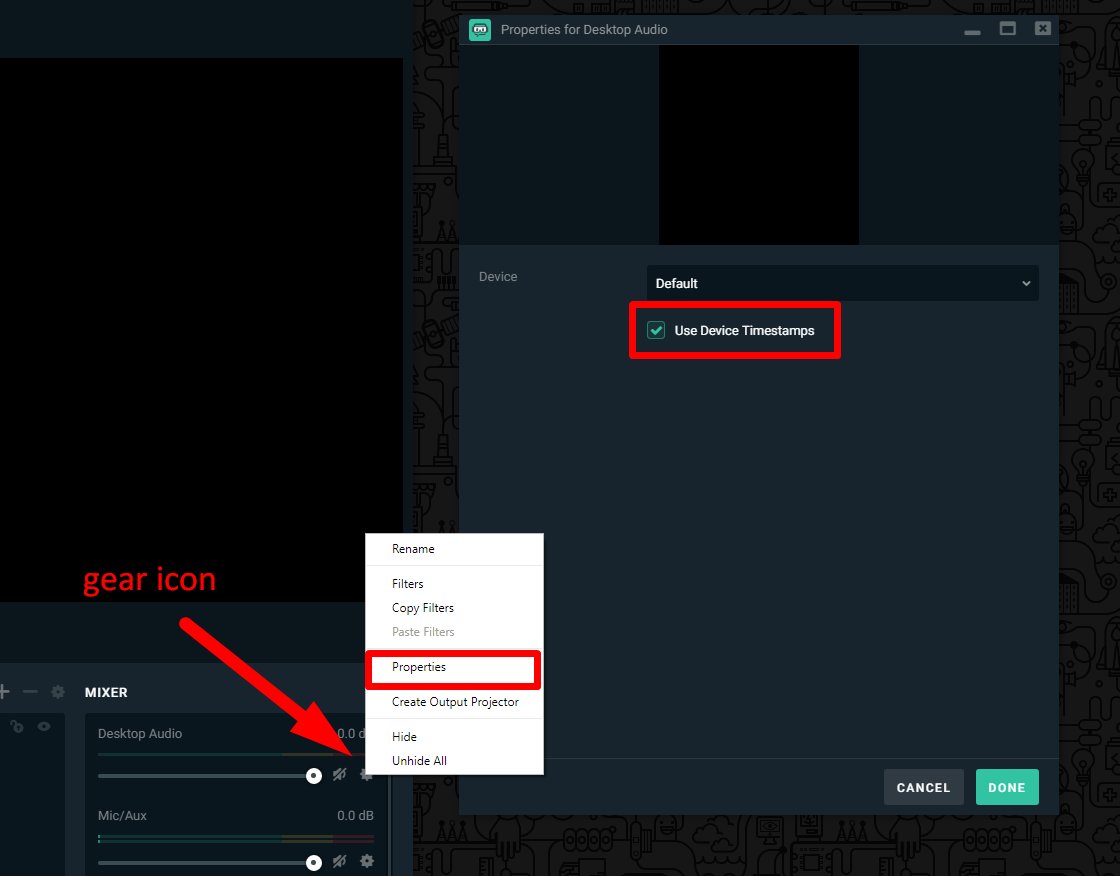
The steps are as follows:
- Get OBS and install it if you haven’t done so already.
- Launch OBS.
- Go to “Capture Settings.”
- Select “Desktop Audio” and set it to default.
- Disable other audio sources if you wish.
- Set the output file settings to an easily convertible video file.
- Choose the audio bitrate levels.
- Start recording your game audio.
- When you’re done, save the recording.
After you finish recording, you’ll need to find a program or website that can split the audio from the video file, such as an MP3. Unfortunately, OBS can’t export anything other than video files. To get the game audio, you’ll have to extract it from the MP4 file.
There are a variety of services that offer this for free. Some of them are Shotcut, CloudConvert, and FreeConvert. The last two are online-based converters that require you to upload the MP4 file. This can take a while, but the advantage is that you don’t need to install anything.
If you download a video editor that can export audio files like Shotcut, you don’t need an internet connection. This allows you to instantly start converting without the need to download the converted file.
Depending on your computer’s needs or internet speed, you can choose the best solution for your needs.

OBS is still an excellent free program for recording your gameplay. That said, it is not advisable to use it to record game audio only. It is best used for its intended purpose – to record video content and export it.
Should I Use OBS for This Task?
OBS is inherently for recording video content. While you can customize the audio quality, it’s not designed to record audio only. You have to handle the post-recording conversion process too. Instead, we recommend you use a different program.
There are plenty of free and paid programs on the market that allow you to just record game audio. One of the best freeware audio recording software is Audacity. Not only is Audacity easy to use, but you have a lot of free rein over the entire process.
With some tweaking, you can select the source audio to record. This is particularly useful for streamers who want to upload content without their commentary.
A simple fix is to use both Audacity and OBS! You can set up Audacity to the game audio while OBS is set up to only record audio from your mic. After recording, you get both the captured game footage and a separate audio file for the game audio.
From there, you can use video editing software to combine the two if required.
Audacity With WASAPI Driver/Stereo Mix
You can set up Audacity so it records both your game audio and microphone. With this, you only need to use OBS for the video aspect of the recording. You can combine the audio and video as you see fit later.
- Install Audacity.
- Before launching and recording with Audacity, right-click your sound icon at the bottom right.
- Select “Open Sound Settings.”
- At the right side of the screen, select “Sound Control Panel.”
- Select the “Recording” tab.
- Right-click and select “Show Disabled Devices.”
- Right-click and enable “Stereo Mix” or whatever it’s called.
- Right-click the microphone you want to record.
- Select “Properties.”
- Go to the “Listen” tab.
- Check the “Listen to This Device” box and apply.
- Now you can start recording.
This method doesn’t allow you to separate the microphone and game audio. If you wish to do that, you can use the method we described earlier.
There are other methods to record game audio and microphone audio on separate tracks, but those are beyond the scope of this article.
Additional FAQs
Is OBS Really Free?
Yes, it is. OBS is open-source and completely free to download and use. The program is frequently updated by contributors using their free time. The GPLv2 license it’s released under allows anyone to use it for free, for any reason.
OBS also doesn’t have any watermarks and limitations. It’s a fully-featured open broadcasting program without restrictions. You can even use it for commercial purposes.
Is OBS Used by Streamers?
Yes, it is. Many streamers on platforms such as Twitch, YouTube, and Facebook Gaming stream using OBS Studio. Since it’s free, many beginner streamers and even professionals still swear by it. The amount of customization and flexibility OBS has is hard to beat.
Can You Edit Videos With OBS?
No, you can’t. OBS is simply used to capture and record video and audio. It doesn’t have any editing functions built into it whatsoever. If you want to edit your streamed or recorded videos, you’ll need a video editing program.
Is OBS Better Than Streamlabs?
Streamlabs is another broadcasting program that streamers also like. OBS and Streamlabs are considered rival software in the world of streaming. Both of them have dedicated users and fans.
Both OBS and Streamlabs are free, but they differ in a lot of aspects. OBS is open-source and community-developed, but Streamlabs is made by a company. As such, you can expect Streamlabs to be more professional.
Overall, Streamlabs has more features and a better user interface. That said, OBS is still a very good program you can rely upon.
Is Audacity Free?
Yes, Audacity is free. Similar to OBS, Audacity is open-source as well, developed by a non-profit group of volunteers. Because of this, Audacity is very modular and you can add all types of plugins and modifications to improve your audio recording experience.
Audacity is distributed under a GNU General Public License, which means you can modify, copy, and even sell it. The conditions are that the source code and license must be the same.
Audio-Only, No Video
Recording game audio-only on OBS isn’t recommended. After all, it’s not designed to do that. Instead, you should use other software in tandem with OBS.
Do you like OBS or Streamlabs when you stream? Do you think OBS should have an official feature to record audio-only? Let us know in the comments section below.
How to record gameplay videos via OBS screen recorder without choppy? What should be the best OBS recording settings? OBS has a whole video settings suite that enables you to record the video with a high quality. The article will share some OBS recording functionality and hidden facts that help you to use the program to record the desired video easily.
- Part 1: The Best OBS Settings for Recording Gameplay Video
- Part 2: Best OBS Alternative to Record Gameplay Video
- Part 3: FAQs about The Best OBS Recording Settings
Part 1: The Best OBS Settings for Recording Gameplay Video
In order to record gameplay videos with OBS screen recorder, you can go to the Controls menu in the left corner and select the Settings option. When you want to get the best video quality, you should turn off the other unrelated programs within your computer.
The Best OBS Recording Settings for Recording Video
Head to the Video tab in the Settings window. It enables you to determine the Base (Canvas) Resolution, which is able to capture the full size screen, or a smaller portion. You can choose to capture a full HD 1080P (1920X1080) for the Output (Scaled) Resolution. As for Downscale Filter, you should choose the best OBS recording settings as Lanzos, which provides the best video quality. The last and most important one is FPS, you can always record a better quality with a higher FPS, but usually 60FPS is enough for the social media websites.
The Best OBS Recording Settings for Output File
Go to the Output tab in the Settings window. Select the Output Mode as the Advanced option. Change the Video Bitrate to 2500Kbps and Audio Bitrate to 160 or higher. Moreover, you can check the Enable Advanced Encoder Settings option to choose a desired encoder preset, or even custom encoder settings. Then select the Recording Quality option as the Lossless Quality, Tremendously Large File Size. As for the best OBS recording settings for the output video format, MKV is the recommended one. If you want to share the videos to social media, you can choose MP4.
The Best OBS Recording Settings for Audio File
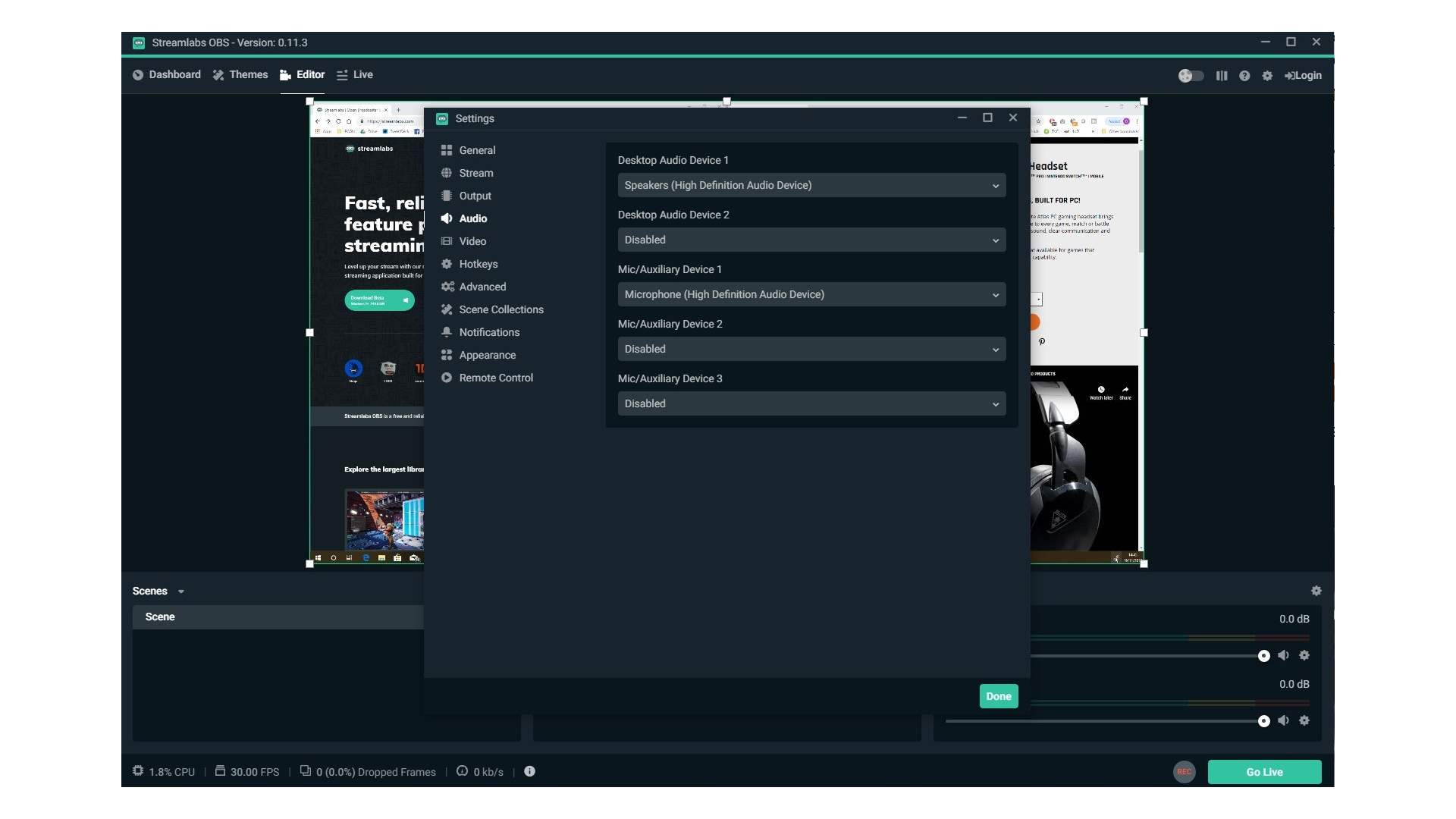
When you want to Audio tab, you can choose the Sample Rate as 48kHz and Channels as Stereo option. Moreover, you can also tweak the Desktop Audio option, Mic/Auxiliary Audio option, and more others parameters. After that, you can tweak the Decay Rate option and Peak Meter Type option to get the best OBS recording settings for audio files. (How to fix OBS black screen?)
Part 2: Best OBS Alternative to Record Gameplay Video
If you still have a choppy OBS screen recording, is there an OBS alternative method to capture screen with advanced settings? Aiseesoft Screen Recorder is a versatile screen recorder that enables you to capture screen video, audio as well as snapshots. Moreover, you can also tweak the video settings, set up a task schedule for screen recording, and even edit the recording files and screenshots with ease.
- Record all onscreen activities, including screen video, audio and snapshots.
- Tweak the video quality, video codec, frame rate, audio quality and others.
- Add annotation, mouse click, shapes, callouts, and texts in different fonts.
- Trim and edit the recorded video and audio files within the built-in editor.
Streamlabs Obs Dashboard
Part 3: FAQs about The Best OBS Recording Settings
1. How to Fix OBS Recording Settings Lag?
How To Get Desktop Audio On Obs Mac
When you record the gameplay videos with OBS, you might find the screen recording choppy. You should turn off Lookahead and Psychovisual Tuning to switch off the Max Quality option. It will use the hardware acceleration and are interfering with your encoding to record with OBS with the best quality.
Streamlabs Obs Mac Desktop Audio Drivers
2. What are the Best PC Settings for OBS Recording?
In order to fix the OBS recording choppy, you should have another check for the network connection. Disconnect from your router, and then connect the computer directly to the modem using Ethernet cable. Besides, you can also check your firewall and security software and update network adapter driver to find whether it works.
3. What is the Alternative Solution if OBS Recording Audio Choppy?
How to fix the OBS recording audio choppy? When you need to have another record, you can use the advanced output settings, please try to set the audio bitrate back to 160. Moreover, you can also install C++ and make sure that the sample rate in Streamlabs OBS, which should be the same as the one for your audio device in Windows audio settings.
Conclusion
When you have some OBS recording audio choppy, you can learn more about the best OBS recording settings. The article shares the information about how to tweak the settings for video, audio and recording output. Moreover, you can also learn more about the frequently asked questions about how to fix OBS recording choppy from the article.
What do you think of this post?
Excellent
Rating: 4.6 / 5 (based on 114 votes)Follow Us on
Streamlabs Obs Beta Download
- How to Record a Livestorm Webinar on Windows/Mac
Can I have a Livestorm webinar recording? How to record a Livestorm video meeting on my computer? In this post, we will guide you to record a Livestorm webinar on your Windows or Mac.
- Review & Tutorial of Bandicam Screen Recorder to Capture Screen on Windows
Want to record games with full screen? Bandicam Screen Recorder can do you a great favor. In this post, we will have a thorough review of Bandicam Screen Recorder.
- How to Record Screen or Audio with QuickTime
Don't know how to record a video or audio on Mac? Want to use QuickTime to capture screen? Learn how to make QuickTime screen audio recording from this page.