Run Windows App program under MacOs OSX 11.2 big sur by using wine Wineskin WineryRun Windows App under MacOs big sur by using wineskin ( 2021 quite detaile. The Sims 3 Mac Download. While Wineskin has been used mainly for gaming, it is capable of running non-gaming software as well. More Information about Wineskin. While there is a lot to Wineskin, at its core it runs Windows™ software by using Wine (www.winehq.org), which is a re-implementation of the Win32 API for non-Windows™ operating systems.
- Wineskin wrapper for the Mac! Hi fellow farmers! I, along with the wonderful community at the Stardew Valley forums, have been working hard to get Stardew Valley running on Wine. After some great successes by the community there, I was able to get everything wrapped up in Wineskin to allow us to easily run the game on Mac!
- Wineskin is a tool used to make ports of Windows software to Mac OS X 10.6 Snow Leopard (or later). The ports are in the form of normal Mac application bundle wrappers. It works like a wrapper around the Windows software, and you can share just the wrappers if you choose (that is the strategy used here).
- This little gem is quickly becoming my favorite way to use Wine on Mac OS X. Wineskin is simple, fast and it’s easy. Everything is put together for you in a nice tidy little package and it’s all self contained in an.app file. It also has advanced features, so if you want to use a custom compilation of Wine you can.
- Wineskin Winery Wrapper Wine Xquartz X11 Mac OS X Macintosh free do-it-yourself porting microsoft windows programs run game games gaming Wineskin: play your favorite Windows games on Mac OS X without needing Microsoft Windows Downloads.
How to Install S & S Windows Applications on a MAC Computer Using Wineskin
Now Pick a Game That You Wanna Port on Wineskin. Before you even make the wrapper you'll need.
Wineskin provides free Windows emulation support to run S & S applications on a MAC.
What is Wineskin?
Wineskin is a tool used to make ports of Windows software to Mac OS X 10.6 Snow Leopard (or later). The ports are in the form of normal Mac application bundle wrappers. It works like a wrapper around the Windows software, and you can share just the wrappers if you choose (that is the strategy used here). Best of all, it’s free and does not require installation of the Windows OS!
If you are satisfied with this installation process, please consider making a donation to Wineskin in support of the excellent work they do in creating the Wine wrapper engine. A brief video tutorial explaining how to use Wineskin to create a Windows wrapper is provided at the bottom of this webpage. Current Version is v2.6.2.
Installation Instructions
- Click on the Wineskin download link. The download will start automatically and show up in your downloads tool bar at the bottom of your browser screen as Wineskin Winery.app V…zip. When the download has completed, double click it to open it in a new finder window.
- Double click the download labeled “Wineskin Winery App”
- Once the app has created a new desktop icon, which will show up in the same finder
window as your download, double click on the Wineskin Winery icon. - This will bring up a security window, asking if you would like to open the Wineskin Winery application which was downloaded from the Internet (even though it is from an unidentified developer), select Open.
- Once the app is installed, it will automatically open. Select the bottom option that says
Create New Blank Wrapper. - Type in the name of the program you are installing (this set of instructions creates a wrapper for the SewArt application. You should replace SewArt with the name of the program you are installing, such as SewWhat-Pro, SewWrite, etc.). Select OK.
- Once the wrapper is created, go to the S & S product download page for the program you wish to install (for example, click Shop->SewArt to access the SewArt webpage). Click the Download (Mac) version button.
- This will once again create a download in your browser. When the download has finished, if
your settings automatically open the downloaded app, you will receive an alert saying your
computer cannot open the application. Select OK. - Single click your Downloads folder (in your dock at the bottom of your screen).
- Select the Open in Finder option
- Right click (two finger tap on your mouse pad) the install app
- This will pop up a menu. Hover over the Open With option. Select the Other… option.
- In the window that pops up, type in the Search box the name of the wrapper you created in Step 6 (SewArt in this case).
- Click the box next to the “Always Open With” option
- Double click the wrapper you created in Step 6 (SewArt in this case)
- If your security preferences do not allow for unidentified developers, click OK on the
security alert that pops up. If no security alert pops up, continue to the next step. - Right click on the install app, and select the Open With then the SewArt option (this will be
based on the name of the wrapper you created in Step 6). - Select Open in the security alert that pops up.
- The SewArt installer will now open. Select Yes.
- Read the Terms and Conditions, and select Yes to agree and continue with the install.
- Select Close once the install has completed.
- Select OK when the alert box pops up saying the program has been installed.
- Right click on the new icon created on your desktop (.ink) and select Open with then
Other… - Search again for the wrapper you created in Step 6
- Important: To skip this step in the future, select the box next to the option Always Open With.
- Select the wrapper you created in Step 6.
- The program (SewArt in this case) will now open, and you can use it just like you would on a Windows computer!
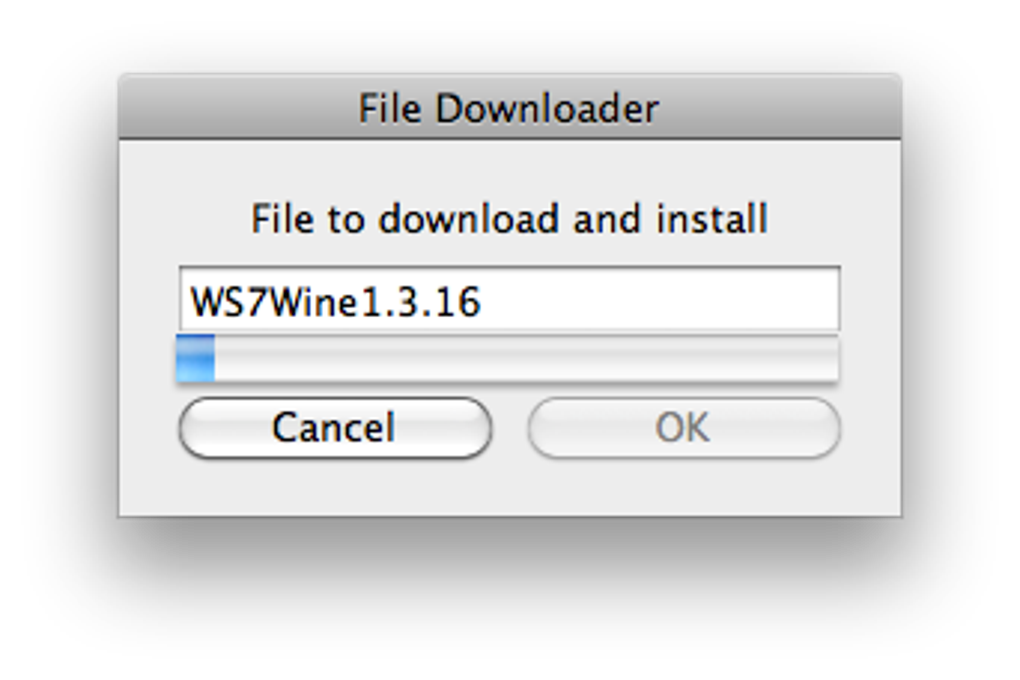
Use the MAC Download button on the product page to download the zipped S & S application Wineskin Wrapper to the Download folder on your MAC. For example, if you are installing SewWhat-Pro, the zipped wrapper file will be named Wineskin-SewWhat-Pro.app.zip. Unzip it and run it to install the product. You may be prompted that “SewWhat-Pro (or whatever application you are installing) is an application downloaded from the Internet. Are you sure you want to open it?” Select “Open” to continue with the installation. You may have to change your security settings to allow the file to run, as explained here. The Wineskin programs will have a wine colored icon next to the file name after they are installed (see figure below).
Once the installation is successfully completed and you open the application, the S & S product application registration box will open. You may now choose to continue using the product as a Demo or enter your registration information if you purchased a license.
Thanks to Kourtney U. for providing this informative step-by-step set of instructions.
While Wineskin has been used mainly for gaming, it is capable of running non-gaming software as well.
Wineskin No Wrapper Installed
More Information about Wineskin
While there is a lot to Wineskin, at its core it runs Windows™ software by using Wine (www.winehq.org), which is a re-implementation of the Win32 API for non-Windows™ operating systems.
Normal Wineskin Engine builds’ Wine versions are built from Wine source code from www.winehq.org
Wineskin Download For Mac
Crossover Engine builds are built from the Wine source code used in the Crossover.
Crossover is a wonderful product by Codeweavers
Wineskin Engines use WineskinX11, a custom version of X11 (required by Wine) made from XQuartz, which is an x.org based X11 server. It does not use Apple's X11.app. You can have it use XQuartz.app instead of WineskinX11 if you so choose. Wine versions from around 1.5.26+ have a Wine Mac driver that can also be used instead of needing X11.
Wineskin Mac Os Catalina
All original content anywhere here on urgesoftware.com belongs to Urge Software or Wineskin, please ask permission for use.
Check compatibility
Dec 06, 2017. Dec 29, 2017. Jul 31, 2020. Sep 29, 2018. Jan 15, 2020.
You can upgrade to macOS Sierra from OS X Lion or later on any of the following Mac models. Your Mac also needs at least 2GB of memory and 8.8GB of available storage space.
MacBook introduced in late 2009 or later
MacBook Air introduced in late 2010 or later
MacBook Pro introduced in mid 2010 or later
Mac mini introduced in mid 2010 or later
iMac introduced in late 2009 or later
Mac Pro introduced in mid 2010 or later
To find your Mac model, memory, storage space, and macOS version, choose About This Mac from the Apple menu . If your Mac isn't compatible with macOS Sierra, the installer will let you know.
Make a backup
Before installing any upgrade, it’s a good idea to back up your Mac. Time Machine makes it simple, and other backup methods are also available. Learn how to back up your Mac.
Get connected
It takes time to download and install macOS, so make sure that you have a reliable Internet connection. If you're using a Mac notebook computer, plug it into AC power.
Download macOS Sierra
For the strongest security and latest features, find out whether you can upgrade to macOS Catalina, the latest version of the Mac operating system.
If you still need macOS Sierra, use this link: Download macOS Sierra. A file named InstallOS.dmg will download to your Mac.
Install the macOS installer
Double-click the downloaded file to open a window showing its contents. Then double-click the file within, named InstallOS.pkg.
Follow the onscreen instructions, which will guide you through the steps necessary to install.
Begin installation
After installation of the installer is complete, open the Applications folder on your Mac, then double-click the file named Install macOS Sierra.
Click Continue and follow the onscreen instructions. You might find it easiest to begin installation in the evening so that it can complete overnight, if needed.
Allow installation to complete
Please allow installation to complete without putting your Mac to sleep or closing its lid. Your Mac might restart, show a progress bar, or show a blank screen several times as it installs both macOS and related updates to your Mac firmware. Download heic as jpg mac.
Learn more
Wineskin Mac Download
- If you have hardware or software that isn't compatible with macOS Sierra, you might be able to install the previous version, OS X El Capitan.
- macOS Sierra won't install on top of a later version of macOS, but you can erase your disk first or install on another disk.
- You can use macOS Recovery to reinstall macOS.
Wineskin Macos High Sierra Download
is here, download and enjoy. Safe and Secure.GET IT HERE!
Fun with Wineskin on macOS Sierra
--- Notes --
Wineskin Mac Mojave
Wineskin Wrapper Download Mac
Subscribe to editing dude: This is another video from the 'failed' series. Probably some good info here for those of you interested in Wineskin.Wineskin 2.6.2 Download Mac
How to Use:Open destination folder and locate file notes.txt, open it and read step by step.
Enjoy!
Don't forget to read instructions after installation. Enjoy Fun with Wineskin on macOS Sierra. for MAC OS/X All files are uploaded by users like you, we can't guarantee that Fun with Wineskin on macOS Sierra For mac are up to date. We are not responsible for any illegal actions you do with theses files. Download and use Fun with Wineskin on macOS Sierra Mac only on your own responsibility.