To get the latest features and maintain the security, stability, compatibility and performance of your Mac, it's important to keep your software up to date. Apple recommends that you always use the latest macOS that is compatible with your Mac.
- Plug your USB external drive back in and look for an InstallESD.dmg file. It might be in a folder named something like 'OS X Install Files'. Copy it some where like your /Downloads folder or your /Desktop. Download DiskMaker X 3.0.3. When prompted for the Install OS X Mavericks.app file, point to the InstallESD.dmg file from the above step.
- Jan 03, 2021 A file named InstallMacOSX.dmg will download to your Mac. Install the macOS installer. Double-click the downloaded file to open a window showing its contents. Then double-click the file within, named InstallMacOSX.pkg. Follow the onscreen instructions, which will guide you through the steps necessary to install. Download Os X Dmg Macdrug.
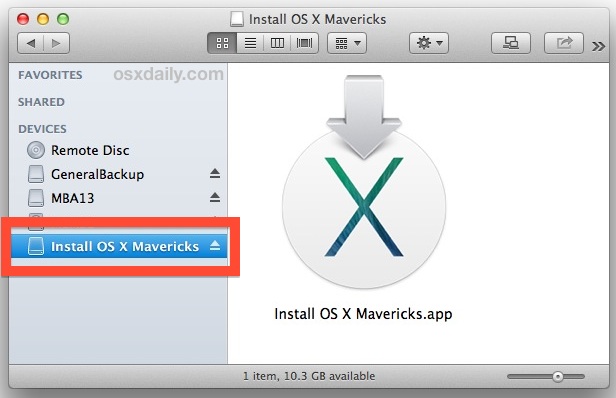
- The Finder window will display the contents of the Install OS X Mavericks file. Open the Contents folder. Open the SharedSupport folder. Right-click or control-click the InstallESD.dmg file, and then select Copy 'InstallESD.dmg' from the pop-up menu. Close the Finder window, and return to your Mac's Desktop.
While either version will probably work, download the DMG version, just in case. An empty USB drive (6 GB or larger): In this guide, you will write Niresh onto a USB drive, and boot your computer from that drive to install OS X Mavericks. The USB drive must be at least 6 GB in size. Install Mac OS X Mavericks on PC with Hackintosh Mavericks Installer, to Install this you dont need access to a Mac This release can be used with AMD processors too. For detail Installation Guide and Instruction read: Install Hackintosh Mavericks on PC/Laptop Features: You dont need a.
Find out how to upgrade to macOS Big Sur, the latest version of macOS.
Check compatibility
The version of macOS that came with your Mac is the earliest version it can use. For example, if your Mac came with macOS Big Sur, it will not accept installation of macOS Catalina or earlier.

If a macOS can't be used on your Mac, the App Store or installer will let you know. For example, it may say that it's not compatible with this device or it's too old to be opened on this version of macOS. To confirm compatibility before downloading, check the minimum hardware requirements:
Download Mavericks Installer Dmg Windows 10
- macOS Catalina 10.15 hardware requirements
- macOS Mojave 10.14 hardware requirements
- macOS High Sierra 10.13 hardware requirements
- macOS Sierra 10.12 hardware requirements
- OS X El Capitan 10.11 hardware requirements
- OS X Yosemite 10.10 hardware requirements
Download macOS using Safari on your Mac
Safari uses these links to find the old installers in the App Store. After being downloaded from the App Store, the installer will open automatically.
- macOS Catalina 10.15 can upgrade Mojave, High Sierra, Sierra, El Capitan, Yosemite or Mavericks
- macOS Mojave 10.14 can upgrade High Sierra, Sierra, El Capitan, Yosemite, Mavericks or Mountain Lion
- macOS High Sierra 10.13 can upgrade Sierra, El Capitan, Yosemite, Mavericks or Mountain Lion
Safari will download the following older installers as a disk image named InstallOS.dmg or InstallMacOSX.dmg. Open the disk image, then open the .pkg installer inside the disk image. It will install an app named Install [Version Name]. Open that app from your Applications folder to start installing the operating system.
Download Os X Mavericks 10.9.0
- macOS Sierra 10.12 can upgrade El Capitan, Yosemite, Mavericks, Mountain Lion or Lion
- OS X El Capitan 10.11 can upgrade Yosemite, Mavericks, Mountain Lion, Lion or Snow Leopard
- OS X Yosemite 10.10can upgrade Mavericks, Mountain Lion, Lion or Snow Leopard