To get the latest features and maintain the security, stability, compatibility, and performance of your Mac, it's important to keep your software up to date. Apple recommends that you always use the latest macOS that is compatible with your Mac.
Learn how to upgrade to macOS Big Sur, the latest version of macOS.
Check compatibility
May 16, 2016 Download OS X El Capitan 10.11.5 Combo Update. This update is recommended for all OS X El Capitan users. The OS X El Capitan v10.11.5 Update improves the stability, compatibility, and security of your Mac, and is recommended for all users. This update includes the following enterprise changes. Open the disk image, then open the.pkg installer inside the disk image. It installs an app named Install Version Name. Open that app from your Applications folder to begin installing the operating system. MacOS Sierra 10.12 can upgrade El Capitan, Yosemite, Mavericks, Mountain Lion, or Lion. One of my Macs wouldn't Restart, clicked on Restart and also waited it out with the counter timer and still it wouldn't restart to complete installation of update. I downloaded OS X El Capitan 10.11.6 Combo Update, but can't find the sha1 What's the sha1 checksum for OS X El Capitan 10.11.6 Combo Update? Doesn't Apple usually list it? Apple has released OS X El Capitan as a free update to all Mac users. The new version of system software is officially versioned as OS X 10.11, and the final build number is 15A284. Users can start the download now from the App Store using the direct link below. OS X El Capitan brings performance updates and improvements to the Mac operating.
The version of macOS that came with your Mac is the earliest version it can use. For example, if your Mac came with macOS Big Sur, it will not accept installation of macOS Catalina or earlier.
If a macOS can't be used on your Mac, the App Store or installer will let you know. For example, it might say that it's not compatible with this device or is too old to be opened on this version of macOS. To confirm compatibility before downloading, check the minimum hardware requirements:
- macOS Catalina 10.15 hardware requirements
- macOS Mojave 10.14 hardware requirements
- macOS High Sierra 10.13 hardware requirements
- macOS Sierra 10.12 hardware requirements
- OS X El Capitan 10.11 hardware requirements
- OS X Yosemite 10.10 hardware requirements
Download macOS using Safari on your Mac
Safari uses these links to find the old installers in the App Store. After downloading from the App Store, the installer opens automatically.
- macOS Catalina 10.15 can upgrade Mojave, High Sierra, Sierra, El Capitan, Yosemite, Mavericks
- macOS Mojave 10.14 can upgrade High Sierra, Sierra, El Capitan, Yosemite, Mavericks, Mountain Lion
- macOS High Sierra 10.13 can upgrade Sierra, El Capitan, Yosemite, Mavericks, Mountain Lion
Safari downloads the following older installers as a disk image named InstallOS.dmg or InstallMacOSX.dmg. Open the disk image, then open the .pkg installer inside the disk image. It installs an app named Install [Version Name]. Open that app from your Applications folder to begin installing the operating system.
- macOS Sierra 10.12 can upgrade El Capitan, Yosemite, Mavericks, Mountain Lion, or Lion
- OS X El Capitan 10.11 can upgrade Yosemite, Mavericks, Mountain Lion, Lion, or Snow Leopard
- OS X Yosemite 10.10can upgrade Mavericks, Mountain Lion, Lion, or Snow Leopard
UPDATE (December 6, 2015): This guide is aimed at Hackintoshes that use Chimera or Chameleon bootloader to run Mac OS X. If your Hackintosh runs OS X 10.11 (aka 'El Capitan') or newer, it most likely uses Clover bootloader, which allows you to simply update OS X from the Mac App Store with relatively little trouble.
1. Do your research
First and foremost, you need to do your research every time you update Mac OS X on a Hackintosh. Unless you have backed up your entire hard drive, you should never install a major Mac OS X system update on the first day of its release. Instead, it is best to wait a few days for the Hackintosh 'community' to test the update first.
The simplest source for keeping up to date with news on Mac OS X updates is tonymacx86.com. Every time there is a major system update, the administrators on tonymacx86 will make a news post on the front page of their website. As the community learns more about a particular system update, this news post will list all relevant information about the update in a convenient and sequential manner.
Most updates won't cause any major problems. However, there are always exceptions-- for instance, the OS X 10.8.2 update broke a hardware monitoring kext that caused certain Hackintoshes to become unbootable.
2. Install the combo update
There are two main ways to install a Mac OS X system update. The first method is to update your computer directly through the Mac App Store. However, this method is generally not recommended, as it doesn't give you a large measure of control over the updating process.
Instead, the preferred method of updating a Hackintosh is to install a 'combo update'. Combo updates are standalone installers for Mac OS X system updates, available for download from the official Apple website. The easiest way to find a combo update is to directly search for it through Google. For instance, if you're looking for the combo update to Mac OS X 10.8.4, simply search '10.8.4 combo update'. The official page from Apple tends to be the first search result. Alternatively, you can find a link to the combo update on tonymacx86-- the news post for each system update includes a download link to the combo update.
Once you have downloaded a combo update from the Apple website, simply open the downloaded DMG file, and run the PKG installer inside. This installation process will take a few minutes-- once the installer finishes, it will ask you to reboot. Don't reboot!
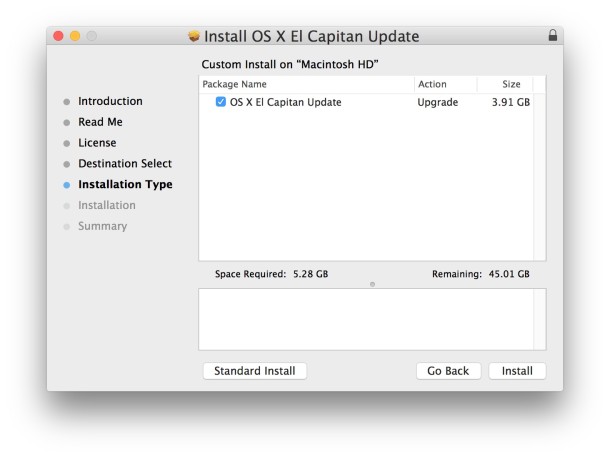 There's no need to reboot yet. Instead, proceed to the next step.
NOTE: Another advantage of a combo update is that it allows you to skip intermediary updates. For instance, if you're running OS X 10.8.0 and want to update to OS X 10.8.4, all you have to do is install the OS X 10.8.4 combo update. You won't need to install the updates for 10.8.1, 10.8.2, or 10.8.3-- the combo update handles all of it for you.
3. Reinstall your drivers
A system update will probably overwrite a few of your Hackintosh's drivers. After installing the combo update, you'll need to reinstall these drivers. You can do this by re-running Multibeast (or whatever driver installation package you prefer).
El Capitan Os X Download
Mac Os X El Capitan Combo Update
Not everything will be affected-- for instance, you probably won't need to reinstall your bootloader, except for really big updates (such as the jump from Mavericks to Yosemite). However, you will have to reinstall the following every time you update Mac OS X:- Audio drivers: This is the most common problem. If you're using a patched version of the AppleHDA audio kext, you will have to reinstall it every time you update. You won't have to reinstall your audio drivers if you're using the VoodooHDA audio kext.
- Patched AppleIntelCPUPowerManagement: If you're using a patched version of AICPM to enable sleep mode and speed-stepping on your computer, you need to reinstall it every time you update. However, every new version of Mac OS X requires a new patched version of AICPM, so you'll probably want to hold off from updating your Hackintosh until Multibeast is updated appropriately.
- TRIM Enabler: If you're using TRIM Enabler to enable TRIM on your computer's solid state drive, you need to reinstall it every time you update. However, every new version of Mac OS X requires a new version of TRIM Enabler, so you'll probably want to hold off from updating your Hackintosh until Multibeast is updated appropriately.
- SleepEnabler: If you're using SleepEnabler.kext to enable sleep mode on your computer, you'll need to reinstall it every time you update. However, every new version of Mac OS X requires a new version of SleepEnabler (Multibeast doesn't include SleepEnabler, so you'll need to find an updated version by yourself).
- Graphics drivers: If you have personally edited the built-in graphics drivers on your Hackintosh to work with your graphics card, you'll have to re-edit those drivers every time you update. If you installed official graphics drivers from NVIDIA, hold off from updating until NVIDIA releases a new version of those drivers.