Utilizing file-based MPEG-2 compression with an MXF File Wrapper, professional High Definition camcorders like Panasonic AG-AC130EJ, AJ-HPX370, Sony EX camera, Canon XF300, XF305 and Canon EOS C300 has the widest compatibility with existing industry infrastructure, metadata and non-linear editing (NLE) systems. However, if you want to edit them in Final Cut Express 4 and other video editing software, or play them with QuickTime player. You may face the problem that both FCE 4 and QuickTime Player do not recognize the MXF videos. A good way to solve this problem is converting MXF to H.264/AVC MOV for Final Cut Express 4 and QuickTime MOV for Apple player. In this page, we will show you two free ways to convert MXF to MOV with ease.
This online FLV to MOV converter supports converting many formats, including MP4, AVI, MOV and WMV. Also, it lets you set video and audio settings, for example, the resolution, bitrate and frame rate. After learning so many ways to convert FLV to MOV online and free, choose the one you really need. Mac has made the process of converting FLV to MOV free and hassle-free. Two of the most important apps that can be used for the purpose are QuickTime and iMovie. But this time, we will deal with video conversion using QuickTime. It will answer the questions such as how to convert FLV to MOV on Mac free.
Part 1. Professional way to convert MXF to MOV/MP4 for Final Cut Pro
Aiseesoft Free MXF to MOV Converter enables users to convert 300+ video formats between MP4, MKV, MOV, M4V, WMV, AV and FLV, MPG, TS, 3GP, FLV, ASF, VOB, etc. You could convert local recorded video or video that you get from online sites to watch on your player freely. Also, it lets you convert audio files like MP3, AAC, AC3, AIFF, M4R, WAV, WMA, AMR, AU, FLAC, MP2, M4A, OGG, etc. for your listening pleasure.
Below is a simple step-by-step tutorial about how to keep the original quality from these professional High Definition camcorders to H.264/AVC MOV or QuickTime MOV on iMac/MacBook Pro with Mac OS X like Tiger, Leopard, Snow Leopard, Lion, Mountain Lion.
To begin with, install and launch this program on your Mac.
Step 1 Add MXF videos to this Mac MXF to MOV Converter
Connect your recorder to Mac computer with USB 2.0 cable or use card reader to transfer the .mxf videos to Apple hard drive disk. Run this program and click the 'Add Files' button to load .mxf files.
Step 2 Choose MOV as the output format
Click 'Profile' button and select iMovie and Final Cut Express > Apple InterMediate Codec (AIC) or QuickTime Movie Format > DVCPRO-PAL (*.mov) as output format.
Also you can click the 'Settings' button to do some further settings.
Step 3 Click MXF videos to MOV format
After all these settings, you can click the 'Convert' button to convert MXF files to the Apple InterMediate Codec MOV. Then you can import the output MOV videos to Final Cut Express for further editing or play them with QuickTime player.
Part 2. How to Convert MXF to MOV with Free Online Video Converter
When you search online video converter, you will find there are various converters to choose. So which one is suitable and secure for you to make an online video conversion? Here we’d like to share an excellent online video converter – Aiseesoft Free Online Video Converter, which is capable of converting your MXF files to MOV with high quality on your computer including both Mac and Windows. You can also use this online converter to turn HD videos or extract audio, such as MP3/AAC/AC3/WMA/WAV from your video files. Follow the steps below to change MXF to MOV.
Step 1 Launch https://www.aiseesoft.com/free-online-video-converter/ on your browser. Click on “Add Files to Convert”, and then you need to download and install Aiseesoft Launcher on your computer.
Step 2 Click “Add File” to add MXF files from your computer. And then choose “MOV” as the output format.
Step 3 Click on the “Convert” button to start changing MXF files into MOV online, free.
Part 3. FAQs of Converting MXF to MOV on Mac
1. What is MXF file?
MXF, Material eXchange Format, is a container format for professional digital video and audio media defined by a set of SMPTE standards. A typical example of its use is for delivering adverts to TV stations. The file format adopts a subset of AAF, which was designed to help standardize the interchange of video between multiple vendors and platforms.
2. How to play MXF file on Mac or Windows?
For getting better playback of MXF files, a professional MXF player which supports playing MXF files as well as compatible with the Mac or Windows OS is essential. Aiseesoft Blu-ray Player is the perfect MXF player to help you play MXF files on your Mac or Windows.
3. Can I convert MXF to MOV on Windows in a free way?
Yes, you can use the above two ways to change you MXF files to MOV on Windows. For a free conversion, you can download the Windows version of Free MXF to MOV Converter to your PC, or choose Free Online Video Converter to make an online conversion.
4. Can I convert P2 MXF to MOV for better playback on Mac?
Yes, Aiseesoft Free MXF to MOV Converter is also a powerful P2 MXF to MOV converting software. It can convert P2 MXF to MOV without any quality loss. What’s more, it can change MXF to other popular video formats, like MP4, AVI, MPEG, M4V, 3GP, WMV, M4A, etc.
What do you think of this post?
Excellent
Rating: 4.8 / 5 (based on 91 votes)
March 27, 2020 08:13 / Updated by Jenny Ryan to Video Converter
- 5 Free Ways to Convert FLV to MOV on Windows PC and Mac
Have no idea how to convert FLV to MOV for further editing? Here are 5 free ways to get QuickTime MOV video online or offline.
- Simple Guide to Play MXF Files on Windows
This is a step-by-step guide that will tell you how to play MXF files on Windows.
- Sony Vegas VS Adobe Premiere, Which is Good for You
Sony Vegas VS Adobe Premiere, which one is better? Looking for a better video editor, you may want to learn more about Sony Vegas and Adobe Premiere.
- 4Media FLV to MP4 Converter for Mac, a flexible and powerful FLV to MP4 converting tool, can convert FLV files to MP4/MOV format so as to watch FLV video files on iPod, iPhone, PSP, and other popular MP4 players anytime.
- Drop down the menu of “Video converter” and choose the option of “Convert to FLV” then press “Go” button. Click “Choose File” to upload your local MP4 video file. Press “Convert file” to start the converting task.
The newest model of play station, PS3, has pushed the video game entertaining to a new height. Video capability is enhanced and it is able to play Blu-ray high-definition movies. However, video playing on PS3 is highly restricted to several formats. That means, if you download FLV videos from YouTube, you can not simply have PS3 played them unless you convert the FLV videos to PS3 compatible ones. It seems as if it needs a lot of knowledge lookup to make the conversion work. However, modern video converters have been responsible for most of the work and made the conversion rather simple for the users. As one of the successful Mac FLV to PS3 video converters, Leawo Video Converter for Mac—the powerful Mac FLV Converter can help Mac users convert FLV to PS3 for Mac in the blink of an eye.
Part 2: Convert FLV to MP4 on Mac with HandBrake. Besides, you can also use Mac version of HandBrake to convert FLV to MP4 Mac. HandBrake is a tool for converting video from nearly any format to a selection of modern, widely supported codecs.
The trick to fast converting FLV to PS3 is mostly attributed to the profiles that prepare all the settings needed in the conversion. The profiles imply that some tests have been carried out on a combination of settings which are meant to produce high-quality output. The users are recommended to use the profile so as to simply meet their goals and avoid unexpected problems. Here you can take a look at the profiles of Leawo Mac FLV Converter. Then with a few steps the conversion is done without suspense. There is a guide to show you to convert FLV to PS3 on Mac. Just focus on it you will learn how to convert FLV to PS3 videos with Mac FLV converter successfully.
Full Guide

Add video files to the program
You can either click on the Add button to import videos or directly drag the video files to the software. The loaded videos will be presented on the processing list. You can double click on the video to have a preview of the video.
Select the output file format
In the 'Profile' menu, just choose PS3 compatible format as output.
Apply video editing features to the output

You can give some features to the output video through Trim, Crop, Rotation, Effect and Watermark.
Begin the conversion
After all settings have been done, start to convert FLV to PS3 videos by clicking on the Convert button.
Extended Knowledge
The PlayStation 3 (officially abbreviated as PS3.) is the third home video game console produced by Sony Computer Entertainment and the successor to the PlayStation 2 as part of the PlayStation series. The PlayStation 3 competes with Microsoft's Xbox 360 and Nintendo's Wii as part of the seventh generation of video game consoles.
by Christine Smith • 2020-06-11 14:18:58 • Proven solutions
FLV is a Flash Video container file format that is mainly used for delivering digital content over the net using Flash Player. These files may also be embedded with SWF files. FLV files are the most common way of watching videos over the net and the file format is also used by popular sites like YouTube for encoding media. Thus, if you have downloaded videos, movies, or shows from various online sites, there are bright chances of these files to be in FLV format. For enjoying your FLV videos over Mac system, you would need to convert FLV to MP4, MOV which can be compatible with Mac system. MP4 is one of the most commonly used file formats is compatible working with Mac and other Apple products. Additionally, if you want to organise FLV in your iTunes library, edit FLV using iMovie, or sync FLV files to iPhone, you would need to convert FLV to MP4 on Mac.
Part 1. Most Effective Method to Convert FLV to MP4 on Mac
One of the best ways to convert FLV to MP4 on Mac is using software like Wondershare UniConverter (originally Wondershare Video Converter Ultimate) that takes complete care of all your conversion needs. This professional software has a simple interface that comes packed with an array of features that makes the entire process easy to handle. Using the software FLV files can be quickly converted to MP4 format and the software supports conversion between other popular formats as well. The software is available for Mac as well as Windows PC. Wondershare is an all-in-one video toolbox for your daily video life, and it fully supports you to download videos from online to your local computer, for example, if you're a fan of dance, you can download HD Hip-Hop dance to MP4 for playback on your different devices. Read below to know the features of UniConverter that makes it the best tool in its category:
Wondershare UniConverter - Best Video Converter for Windows / Mac (Catalina Included)
Avi To Mp4 Converter For Mac For Free
- Convert FLV to MP4, MOV, and other 1000 popular formats including 4K and VR.
- 30 times faster speed as compared to other software.
- Convert FLV files to MP4 without any quality loss.
- With batch processing support, multiple files can be converted with just a click.
- Download online FLV videos to MP4 directly.
- Allows personalizing and enhancing videos using various editing features like Trim, Merge, Crop, Rotate, and others.
- Works as complete video toolkit: DVD burner, screen recorder, Metadata editor, GIF maker, and more.
- Supported OS: Mac OS 10.15 (Catalina), 10.14, 10.13, 10.12, 10.11, 10.10, 10.9, 10.8, 10.7, 10.6, Windows 10/8/7/2003/XP/Vista.
Watch Video Tutorial to Convert FLV to MP4 on Windows 10, Similar Steps on Mac
Guide to Convert FLV to MP4 Mac with Wondershare UniConverter:
Convert Mov To Flv Mac
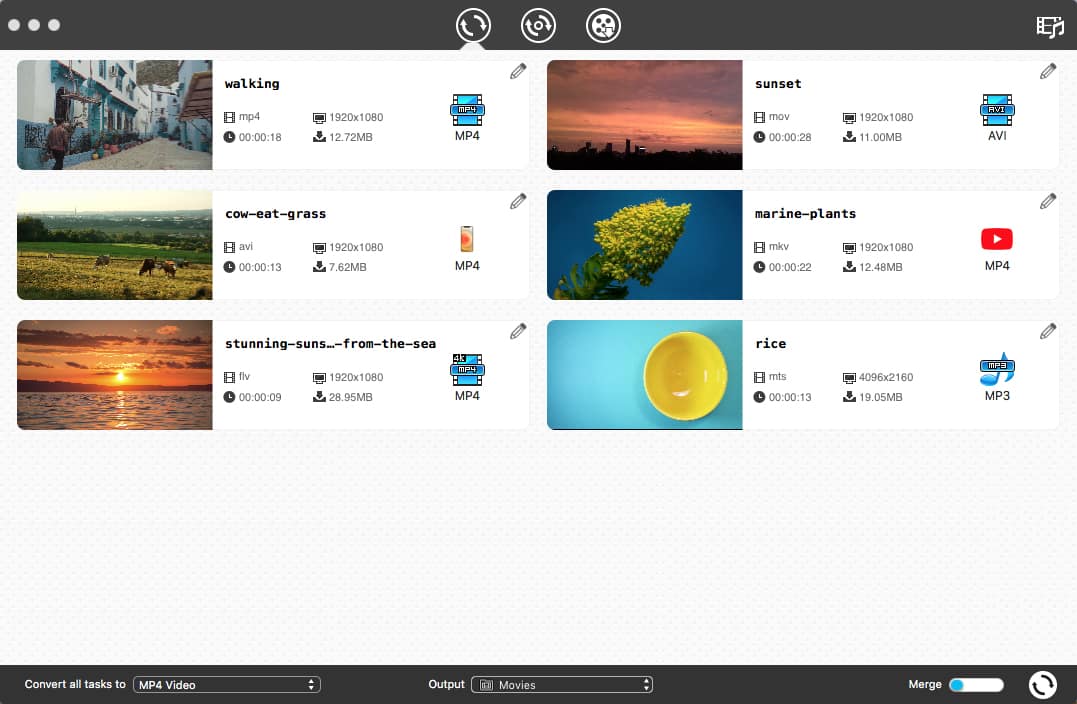
Step 1 Load FLV file to the Mac FLV to MP4 converter.
Download, install and launch Wondershare UniConverter for Mac on your Mac system. To add the FLV file to the software interface, you can simply drag and drop. Alternatively, you can also add the file by clicking Add File. Load Media Files and then browse for desired FLV file on your Mac system. Multiple FLV files can also be added for batch processing.
Step 2 Select MP4 as output format.
After FLV file is added, click the drop-down icon beside 'Convert all tasks to:', and select the MP4 format and the resolution from the Video category.

Note: You're enabled to edit the format parameters by clicking Edit icon beside the resolution or clicking Create Custom to build a new format.
Step 3 Start converting FLV to MP4 Mac.
Finally, click the Convert All button to initiate the FLV to MP4 conversion process. The selected FLV file will be successfully converted to MP4 format. You can find the converted file by tapping the Output icon at the bottom of the main interface.
Part 2. Free Way to Convert FLV to MP4 on Mac
Mov To Flv Converter Mac Free Download
In addition to paid software, there are also a number of free tools and software available and one such decent name in the list is Wondershare Free Video Converter for Mac. This wonderful software is free to use and allows converting videos to formats that are compatible working with iOS devices. Using this software you can convert local FLV or other files present on your Mac, or can also download videos from YouTube and then convert to compatible formats. The APEXTRANS technology of the software makes the conversion process 30 times faster as compared to other available software.
Simple Steps to Convert FLV to MP4 with Wondershare Free Video Converter for Mac:
As the Wondershare Free Video Converter is the free version of the best Wondershare FLV to MP4 Converter we mentioned in Part 1, and they have similar interface and functions, so you can also follow the detail steps above on your free FLV converter. Alternatively, you can follow the simple steps list below to convert FLV to MP4 on Mac quickly and easily.
Step 1: Download, install and launch Wondershare Free Video Converter on your Mac. You'll come to the Convert interface by default.
Step 2: Drag and drop desired FLV files to the software interface. Alternatively, you can also click the +Add Files button to browse for the desired file on your Mac.
Step 3: Select the MP4 or other formats you like from the Video tab by clicking on the Convert all tasks to: option and open the formats list.
Step 4: Finally, click on the Convert All button to initiate the conversion process. The selected FLV file will successfully convert to MP4 format for free on your Mac.
Part 3. Online Way to Convert FLV to MP4 on Mac
If you find download and install software a tedious task and looking for a simple and straightforward method, then using an online converter is an apt solution for you. Online UniConverter (originally Media.io) is one such online program that allows converting FLV files to MP4 format without installing or registering any software. You simply need to open Online UniConverter (originally Media.io) on your Mac, add desired file and select output format. The program is free to use and support an array of input and output formats. After the conversion, you can download the files directly.
Steps to Convert FLV to MP4 using Online UniConverter (originally Media.io):
Step 1: Open https://www.media.io/ on your Mac. And click “Add your files” and browse for the desired FLV file on your Mac system.
Step 2: Click the drop-down icon and select MP4 from the Video category as output format.
Step 3: Click the Convert button to start converting FLV files to MP4 online.
Step 4: After a while, you can download the converted FlV files in MP4 to your computer by tabbing the Download All button. Alternatively, you can save them to your Dropbox that you can fetch them anywhere.
Part 4. Why Choose Wondershare UniConverter for Mac
Given below is the comparison table of the above 3 listed methods.
| Software/Tool | Wondershare UniConverter for Mac | Wondershare Free Video Converter for Mac | Free Online Video Converter Online UniConverter |
|---|---|---|---|
| Allows converting FLV to MP4 in addition to all popular formats | Yes | Yes | Limited format support |
| Windows/Mac Support | Yes | Yes | Yes |
| Conversion Speed | Very fast | Fast | Normal |
| Video conversion without any quality loss | Yes | Yes | Yes |
| Batch file conversion | Yes, many files at one time | No | Yes, at most 2 files once |
| Device compatible format conversion | Yes | Limited support to iOS devices | No |
| Download and recording from sites | Supports more than 10,000 sites | Only YouTube | No |
| Local and online file conversion | Yes | Local + YouTube | only local |
| Creating, burning, converting DVD | Yes | No | No |
| Streaming videos | Yes | No | No |
| Editing features | Yes | No | No |
| Fetch Metadata | Yes | No | No |
So if you are looking for options to convert FLV to MP4, Wondershare UniConverter seems to be the perfect FLV to MP4 converter on Mac. Depending upon your specific requirements, you can also opt for other solutions.