- Usb Camera Software
- Microsoft Usb 2.0 Camera Driver Windows 10 Download
- Microsoft Usb 2.0 Camera Driver Windows 10 64-bit
- Usb 2.0 Pc Camera Setup
Usb 2.0 Driver For Windows 10 free download - USB2.0 Driver.zip, Bluetooth Driver Ver.5.0.1.1500.zip, Realtek RTL8187B Wireless 802.11b/g 54Mbps USB 2.0 Network Adapter, and many more programs. The package provides the installation files for Realtek USB 2.0 Camera Driver version 6.2.9200.225. Go to Device Manager (right click on My Computer, choose Manage and then find Device Manager in the left panel) 2. Right click on the hardware device you wish to update and choose Update Driver Software.
Sometimes, you might see that the Webcam in the ASUS laptop is not being detected at all or is not working as expected. This might happen because of the following reasons:
- Upgrade to Windows 10
- Updating the Windows
- No Access to the camera
- Antivirus blocking the Camera
- Camera driver not being up to date
In this article, let us discover various possible ways to fix the Web camera issue in ASUS Laptop.
Fix 1: Press the F10 Camera HotKey
This is a simple hack. In most ASUS laptops, the F10 key is a hotkey that can be used to enable and disable the camera.
Step 1: Press the keys fn+f10 at the same time from your keyboard.
Step 2: You should see a message that says Camera ON on the screen.
Check if this fixes your issue. If not, try the next fix.
Fix 2: Check if the Antivirus is blocking Camera
Open your Antivirus settings and check if the Camera is blocked by the antivirus. If so, allow the camera.
Fix 3: Allow Access to Camera in Privacy Settings
Step 1: Hold the keys Windows+R at the same time.
Step 2: In the Run dialog that opens, type ms-settings:privacy-webcam, and Press on the OK button
Step 3: In the window that opens, Make sure the Camera is ON in the section Allow access to the camera on this device.
If not, click on the Change button and toggle the button to Turn ON the Camera.
Step 4: Under the Allow apps to access your camera section, Turn the button ON
Step 5: In Choose which Microsoft Store apps can access your camera, make sure the camera is turned on for the required applications
Step 6: Make sure the camera is turned ON under the section Allow desktop apps to access your camera.
Now check if the camera is working properly. If not, try the next fix.
Fix 4: Update the Camera Driver
Step 1: Open the Run Window by holding the keys Windows+r
Step 2: Enter devmgmt.msc, and hit OK
Step 3: From the device manager window, Double click on Cameras to expand the selection. If you do not see the Camera here, check if it is there under the Others
Now, right-click on the camera name. For Example, HP Truevision HD in this case.
Step 4: In the Update Drivers window, click on Search automatically for drivers
Step 5: If any updated version of the driver is found, you will be notified and you can update the driver.

Once, the driver is up to date, check if the camera is working correctly. If not try the next fix.
Fix 5: Uninstall and Re-install the Camera Driver
Step 1: Open Device Manager(Refer Steps 1, 2 from Fix 2)
Step 2: In the Device Manager window, click on the arrow mark next to Camera in order to expand the selection. If you do not see your camera listed here, check under the Others section.
Step 3: Right-Click on the Name of your camera. In this case, HP Truevision HD. Choose Uninstall Device from the Context menu.
Step 4: In the Uninstall device window, Click on the Uninstall button.

Step 5: Restart the system. Windows will try to reinstall the drivers.
Step 6: In the device Manager wind0w, if you cannot see the camera drivers listed, right-click on Cameras and choose Scan for hardware changes
Step 7: You can notice that the drivers are reinstalled.
Check if the Camera is working as expected. If not, try the next fix.
Fix 6: Revert Windows to Previous Update Version
At times, some new updates might have caused the issue. To check if that is the case, one can simply opt to remove the changes made by the latest update.
Step 1: Open the Run Dialog and type ms-settings:windowsupdate and hit Enter.
Step 2: Scroll down and choose View Update history
Step 3: In the appearing window, Check if there were any updates to the Camera app under the Update history section.
Step 4: Click on Uninstall updates
Step 5: In the Window that opens, a list of updates that are installed in the system will be shown.
Step 6: Right-click on the update that is causing the issue and choose Uninstall.

Check if the camera works fine. If not try the next fix.
Fix 7: Update Windows
Having your Windows Operating System up-to-date alone can fix almost all of your windows related issues. Please check if there are any new windows updates related to the camera and if found, install them to try and fix your issue.
Step 1: Open the Run Dialog holding Win Key +R
Step 2: type ms-settings:windowsupdate and hit Enter.
Step 3: In the window that opens, click on Check for updates.
Step 3: Windows will now check for any new updates. If any new updates are found, those will be downloaded and installed.
Step 4: Click on the Restart now button for the changes to take over. Check if your problem is resolved or not once the system restarts.
If this fix does not fix your problem. Try the next fix.
Fix 8: Resetting Windows
Usb Camera Software
If nothing works, try resetting the windows. For details, refer to How to reset windows 10 without losing files
Fix 9: Restore your System
If you have created a restore point of the system before the issue was encountered, you can roll back to that point. If the issue is because of some changes in the system, it will be fixed.
Refer to How to perform System Restore on Windows 10
Fix 10: Pinch the areas of the Web camera
Pinch either side of the Web camera thoroughly. Please do not apply too much pressure so as to break the camera. The pressure is to be applied to build a connection if at all anything was loosened.
If none of the above fixes worked for you, it is better to check the hardware once.
Also, please check How To Fix Camera error code 0xa00f4292 in Windows 10
That’s All. We hope this has been informative. Thank you for Reading.
Kindly comment and let us know if you were able to solve the issue.
Anusha Pai is a Software Engineer having a long experience in IT industry and having a passion to write.
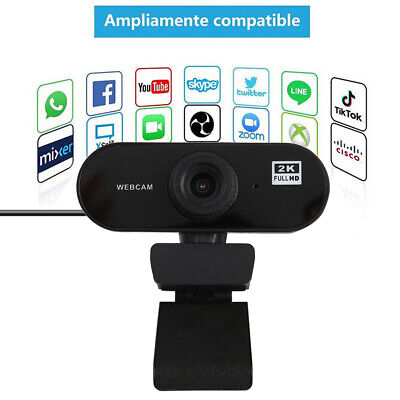
Microsoft Usb 2.0 Camera Driver Windows 10 Download
Related Posts:
In order to manually update your driver, follow the steps below (the next steps):
1. Go to Device Manager (right click on My Computer, choose Manage and then find Device Manager in the left panel)
2. Right click on the hardware device you wish to update and choose Update Driver Software
3. Choose to select the location of the new driver manually and browse to the folder where you downloaded the driver
Microsoft Usb 2.0 Camera Driver Windows 10 64-bit
It is highly recommended to always use the most recent driver version available.
Try to set a system restore point before installing a device driver. This will help if you installed an incorrect or mismatched driver. Problems can arise when your hardware device is too old or not supported any longer.
Usb 2.0 Pc Camera Setup
- COMPATIBLE WITH:
- Windows 8 64 bit
- file size:
- 4.8 MB
- filename:
- 20580432_a51c7543450a0c7a61a2e242c47b544851f7073c.cab
- CATEGORY:
- Digital Camera / Webcam / Camcorder