- Cisco Webex Meeting Center Download For Mac
- Cisco Webex Meetings Desktop App
- Cisco Webex Meeting Center Download
- Cisco Webex Meeting Center Download Mac Download
Students, faculty, and staff can install the Webex Meetings desktop app on their computers; if needed in the future, users can uninstall Webex.
This guide will walk you through installing the Desktop App and also the Webex Removal Tool. You can review the second half of this page for the removal process.
While you do not have to install the desktop application in order to join a Webex session, ITS recommends that Hosts install and use this application to have access to the full suite of Host controls.
Make sure to download the correct application
Cisco Webex Meetings delivers over 25 billion meetings per month, offering industry-leading video and audio conferencing with sharing, chat, and more. Experience why Webex Meetings is the most trusted video conferencing solution today. Join and present from any meeting, event, or training session directly from your iPhone, iPad, or Apple Watch. Mac OS X Supported Cisco Webex Product Version All Cisco Webex meeting service versions Download. Sign in to your Webex site. 2: Select Downloads Cisco Webex Meetings Desktop App Download. 3: Run the.msi (Windows) or.dmg (Mac) installation file and follow the instructions. The Webex Meetings desktop app opens when the installation is complete.
To ensure that you download the correct application, please use the download links on this page. UConn uses Webex Meetings.
Cisco, the developers of Webex, have released a newer application called Webex Teams that does not have the same feature set as Webex Meetings. If you use Webex Teams, you will not have access to the Chat feature or Breakout Sessions. A quick way to figure out which application you have is to look at the icons; if there are colors other than blue and green in the icon, you have installed the incorrect application. See below:
- Webex Teams will need to be uninstalled manually; the Webex Removal Tool (below) does not include Teams.
- On Windows, use Add or remove programs to uninstall Webex.
- On Mac, drag Webex from the Applications folder to the trash.
- If you see Cisco Webex Meetings, do not uninstall that program. That is the correct program.
Install Webex Meetings
- Download the installer found below.
For instructions on downloading the mobile app, review the article, Setting up the Webex mobile App. You can install Webex on both Windows and Mac computers. Click on the appropriate tab below:
- Open the installer file when it finishes downloading.
If you are a UConn user and have a NetID, you can proceed with this article. Enter your UConn email when prompted to enter an email address.
If you do not have a NetID, you do not need to follow the steps in this article. You can enter your personal email and simply follow the on-screen installer instructions.- If you are asked which Webex site you would like to use, enter: uconn-cmr.webex.com. This important step will connect you to the UConn Webex system and ensures your computer does not have the limitations associated with using a free account.
If you run into any of the errors shown below, click Yes. You can click on any of these images to enlarge them as needed.
Sign in using your NetID and NetID password.
- If you are prompted to confirm your log in using Duo, please do so.
- Download the Webex package.
Open the .pkg file you downloaded.
- Follow the on-screen instructions.
- If you are asked which Webex site you would like to use, enter: uconn-cmr.webex.com. This important step will connect you to the UConn Webex system and ensures your computer does not have the limitations associated with using a free account.
- If you are asked which Webex site you would like to use, enter: uconn-cmr.webex.com. This important step will connect you to the UConn Webex system and ensures your computer does not have the limitations associated with using a free account.
- Review the article, Hosting a Webex Meeting for more information about using the Desktop App user interface.
Webex Removal Tool
- Removing the desktop application will not affect your account.
- Removal will not affect any settings or any meetings, past, present, or future, in your account.
- You can use the Webex website interface until you re-download the Desktop App.
To proceed,
Run the Removal Tool below. You do not need to uninstall it first. Click on the appropriate tab below:
- Download the Webex Removal tool.
- When you open the file you downloaded, a Command prompt will appear.
- Type yes.
- Press Enter to begin the Removal Process.
- While this tool is working, you will see many lines of text scrolling through the window. It may pause a couple times, then continue scrolling.
- The Command Prompt will close when it is finished.
- Download the Webex Removal tool.
- Open the .dmg file you downloaded.
- The file will run by itself.
- The file will run by itself.
- Use the first half of this article to reinstall the Desktop App.

Related Articles
Cisco Webex Audio Driver Package Download for Mac
Where can I download the Audio Driver Package which allows admins to pre-install the drivers?
How do I download and install the Audio Driver Package on my Mac?
Description:
This is a special audio driver package used to allow admins to pre-install the drivers on the end-user computers.
Supported OS/Version
Mac OS X
Supported Cisco Webex Product Version
All Cisco Webex meeting service versions
Download
Sign in to your Webex site. 2: Select Downloads Cisco Webex Meetings Desktop App Download. 3: Run the.msi (Windows) or.dmg (Mac) installation file and follow the instructions. The Webex Meetings desktop app opens when the installation is complete. 4: Enter your email address and select Sign In. Some crashes on MacBook Air during Cisco webex english lessons by NicolaCortesi08 91 on 06:39 AM Latest post on 08:39 PM by SiliconRichard 1 Reply 108 Views.
 Instructions
Cisco Webex Meeting Center Download For Mac
- Download the CiscoAudioDeviceInstall.pkg.zip file.
- Unzip the file, then right-click to open with Terminal.
- Execute sudo installer -pkg CiscoAudioDeviceInstall.pkg -target / or add this command to their batch processing script.

The Webex Meetings desktop app package includes two parts: the in-meeting app, which allows you to host or participate in meetings, and the pre-meeting app, which resides on your desktop.
You can use the pre-meeting desktop app to manage your meetings, whether or not you have a Webex account. If you sign in with an account, you can start meetings instantly, schedule meetings, join your scheduled meetings, add integrations to join meetings from other apps, and detect nearby video devices. If you don't have an account or haven't signed in, you can still use the Webex Meetings desktop app as a guest to see your upcoming meetings, easily join your meetings, and connect to a video device.
Download and Install the Webex Meetings Desktop App
The Webex Meetings desktop app automatically downloads after starting or joining a Webex meeting from a Webex site or email invitation. Click the installation file to install it. Refer to the New Webex Sign-In Users and the New Webex Guest Users sections in the Cisco Webex Meetings Desktop App Installation Matrix.
Cisco Webex Mac Os Download
If you want to install the app without joining a meeting first, you can also download it manually. Go here to get the download file, then follow steps 3—5 below to install the file.
Cisco Webex Meetings Desktop App
Cisco Webex Meeting Download Free
Cisco Webex Meeting Center Download
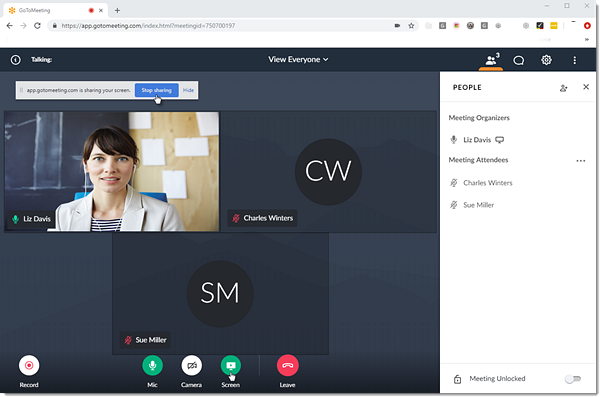
Customers who are locked down to a specific meeting application version should get the download file directly from their Webex site. Follow the steps below.
If you have a previous version of the Webex Meetings desktop app, you have to uninstall that version before installing the new version. |
Cisco Webex Meeting Center Download Mac Download
Webex Meeting Download For Mac
| 1 | Sign in to your Webex site. |
| 2 | Select Downloads > Cisco Webex Meetings Desktop App > Download. |
| 3 | Run the .msi (Windows) or .dmg (Mac) installation file and follow the instructions. The Webex Meetings desktop app opens when the installation is complete. |
| 4 | Enter your email address and select Sign In. /roller-coaster-tycoon-3-mac-download-full/. |
| 5 | Select or enter your Webex site URL, and then enter your password. |