
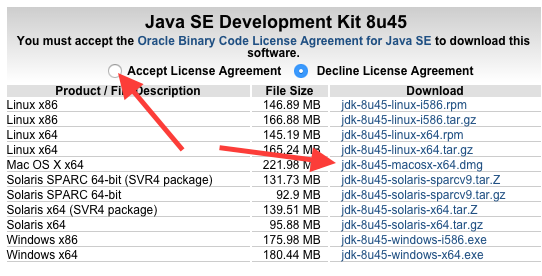
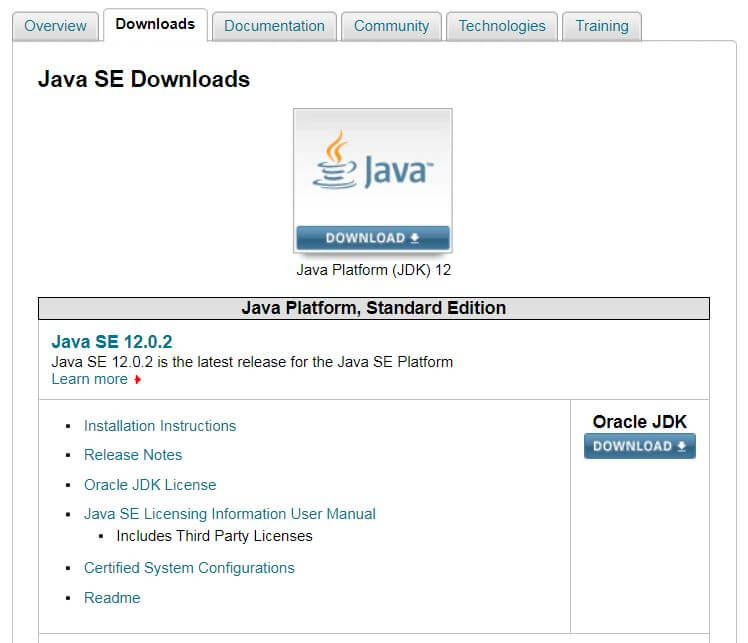
How To Download Jdk For Mac; What is a JDK? The Java SE Development Kit, or JDK, is an extended subset of tools that allow for developing applications for the Java programming language. The installation process is very straight forward: Navigate to the Java SE Downloads page. Choose the JDK Download: Agree to terms and download the Mac OS X version. These downloads can be used for development, personal use, or to run Oracle licensed products. Use for other purposes, including production or commercial use, requires a Java SE subscription or another Oracle license. JDK 11 software is licensed under the Oracle Technology Network License Agreement for Oracle Java SE. JDK 11.0.12 checksum. Use Software Update available on the Apple menu to check that you have the most up-to-date version of Java 6 for your Mac. Java 7 and later versions are not supported by these older versions of Mac OS X. If you have problems with Java 6, contact Apple Technical Support. Java.com does not provide a download for these systems.
This topic includes the following sections:
System Requirements for Installing the JDK on macOS
The following are the system requirements for installing the JDK on macOS:
Any Intel-based computer running macOS.
Administrator privileges.
You cannot install Java for a single user. Installing the JDK on macOS is performed on a systemwide basis for all users. Administrator privileges are required to install the JDK on macOS.
Determining the Default JDK Version on macOS
When starting a Java application through the command line, the system uses the default JDK.
You can determine which version of the JDK is the default by entering java -version in a Terminal window. If the installed version is 11 Interim 0, Update 0, and Patch 0, then you see a string that includes the text 11. For example:
To run a different version of Java, either specify the full path, or use the java_home tool. For example:
$ /usr/libexec/java_home -v 11 --exec javac -version
Installing the JDK on macOS
- Download the JDK
.dmgfile,jdk-11.interim.update.patch-macosx-x64.dmg.Before the file can be downloaded, you must accept the license agreement.
- From either the browser Downloads window or from the file browser, double-click the
.dmgfile to start it.A Finder window appears that contains an icon of an open box and the name of the.pkgfile. - Double-click the
JDK 11.pkgicon to start the installation application.The installation application displays the Introduction window. - Click Continue.
- Click Install. A window appears that displays the message: Installer is trying to install new software. Enter your password to allow this.
- Enter the Administrator user name and password and click Install Software.The software is installed and a confirmation window is displayed.
.dmg file if you want to save disk space. Uninstalling the JDK on macOS
You must have Administrator privileges.Note:
Do not attempt to uninstall Java by removing the Java tools from /usr/bin. This directory is part of the system software and any changes will be reset by Apple the next time that you perform an update of the OS.
- Go to
/Library/Java/JavaVirtualMachines. - Remove the directory whose name matches the following format by executing the
rmcommand as a root user or by using thesudotool:/Library/Java/JavaVirtualMachines/jdk-interim.update.patch.jdkFor example, to uninstall 11 Interim 0 Update 0 Patch 0:
$ rm -rf jdk-11.jdk
Installation FAQ on macOS Platform
This topic provides answers for the following frequently asked questions about installing JDK on macOS computers.
1. How do I find out which version of Java is the system default?
When you run a Java application from the command line, it uses the default JDK. If you do not develop Java applications, then you do not need to worry about this. See Determining the Default JDK Version on macOS.
2. How do I uninstall Java?
See Uninstalling the JDK on macOS.
3. After installing Java for macOS 2012-006, can I continue to use Apple's Java 6 alongside the macOS JDK for Java 11?
If you want to continue to develop with Java 6 using command-line, then you can modify the startup script for your favorite command environment. For bash, use this:
$ export JAVA_HOME=`/usr/libexec/java_home -v 11`
Some applications use /usr/bin/java to call Java. After installing Java for macOS 2012-006, /usr/bin/java will find the newest JDK installed, and will use that for all of the Java-related command-line tools in /usr/bin. You may need to modify those applications to find Java 6, or contact the developer for a newer version of the application.
4. Can I restore Apple Java after uninstalling Oracle Java?
Go back to Apple Java using the following instructions:
Uninstall Oracle Java by deleting the plug-in file. From a command-line, enter:
$ sudo rm -rf '/Library/Internet Plug-Ins/JavaAppletPlugin.plugin'Create a symlink using the following command, entered on a single line:
$ sudo ln -s /System/Library/Java/Support/CoreDeploy.bundle/Contents/JavaAppletPlugin.plugin '/Library/Internet Plug-Ins/JavaAppletPlugin.plugin'
5. What happened to the Java Preferences app in Application Utilities?
The Java Preferences app was part of the Apple Java installation and is not used by Oracle Java. Therefore, macOS releases from Apple that do not include Apple Java will not include Java Preferences.
23 Dec How to download and install Java 15 on macOS
In this article, we will learn how to install Java JDK 15 on macOS. With that, to avoid any hassles in future, we will also let you know how to verify the installation.
Download Java JDK 15 on Mac
To download Java JDK 15, go to Oracle’s official website and click “Download Java“:
Now, click “JDK Download” to download:
Now, the Downloads page will be visible.
Go to the bottom of the page, and click on the macOS installer i.e. jdk-15.0.1_osx-x64_bin.dmg as shown below:
Now, accept the License Agreement as shown in the below screenshot.
After accepting, click on Download jdk-15.0.1_osx-x64_bin.dmg:
Just wait for few minutes till the download finishes. The downloaded jdk dmg file will get saved in the Downloads folder.
Install Java 15 on Mac
The download finished as in the below screenshot. Right-Click on the jdk-15.0.1_osx-x64_bin.dmg and press “Show in Finder” to begin installation:
We gave reached the Downloads folder. Double click to begin installation:
After double click, it will begin opening the .dmg file:
The following .pkg file (PKG) is now visible. A PKG file is a package of compressed installer files for JAVA. To begin installation, double click on the file:
The installation finally begins. Click Continue as in the below screenshot:
Now, click Install in Installation Type step as shown below:
Now, type the MAC Admin password and click Install Software:
The final installation begins:
Java 15 installation completes as in the below screenshot.
Click Close:
While installing JAVA JDK 15 on MAC, you don’t need to set the Environment Variable like we saw while Installing Java 15 on Windows 10.
Verify Java Installation
We saw how to install Java JDK 15 above. We installed on macOS. Now, we can easily verify whether the installation was successfully or not using the following command:
2 | java-version |
Now, let us open the Terminal by pressing CTRL + T and type the command
“java -version” to verify whether we have installed JAVA 15 successfully or not on MAC:
On pressing ENTER, if the following is visible, that would mean the Java JDK 15 installation on MAC is successful:
In this tutorial, we saw how to install Java 15 on MAC. After installation, we verified the installation of Java JDK 15 successfully.
Here’s the YouTube video for the steps we saw above to install Java 15 on macOS:
If you liked the tutorial, spread the word and share the link and our website Studyopedia with others:
How To Download Jdk 14 On Mac
Support us: DONATE
How To Download A Jdk On Mac
Read More: